Workbench
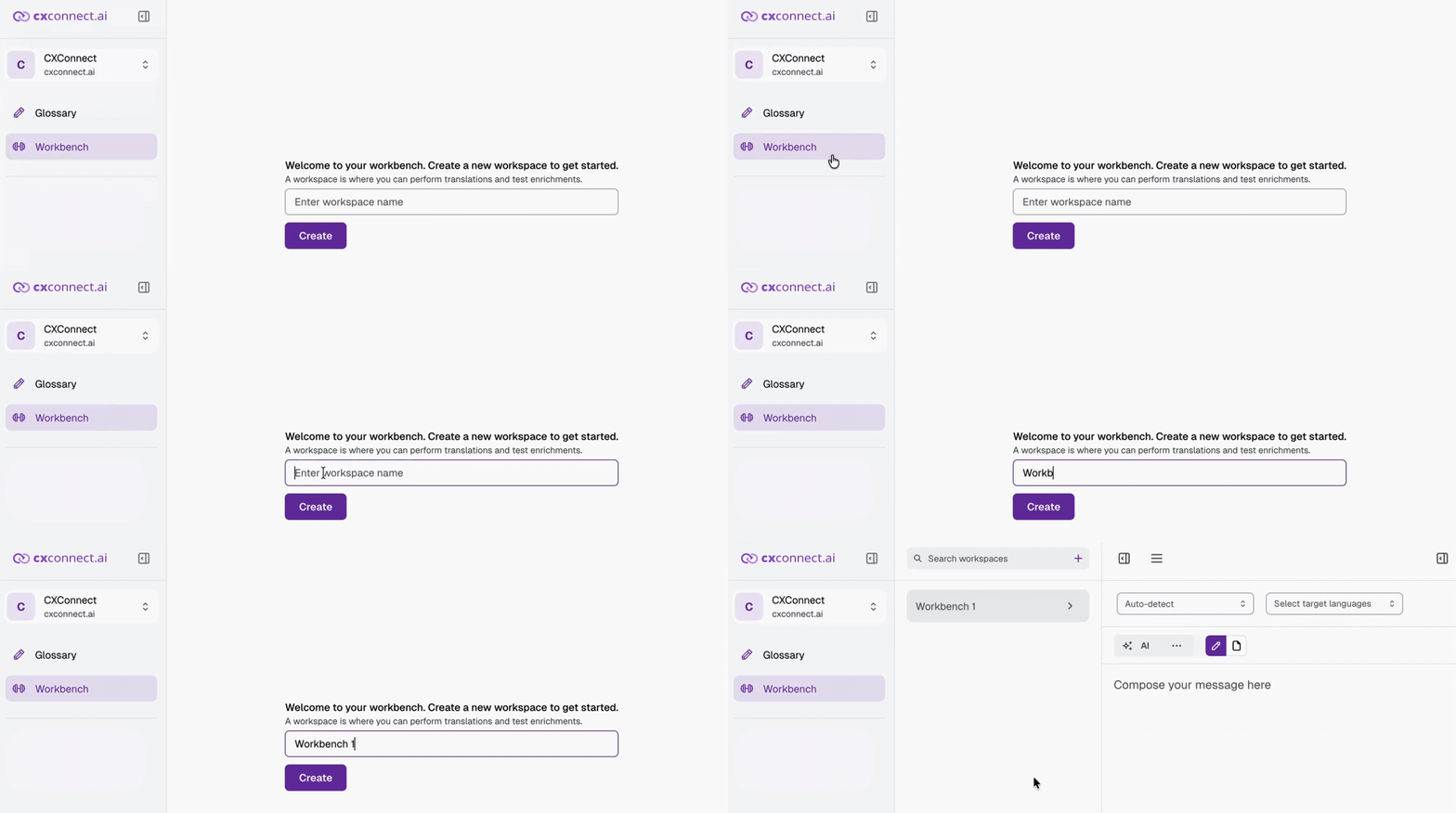
How to Create a Workbench
- Log in to Studio.
-
From the sidebar, select Workbench.
Features
1. Quality Enrichments
Enhance the clarity and accuracy of your message before translation. Applying these enrichments to the original draft ensures better input and, in turn, higher-quality output.- Syntax
- Grammar
- Clarity
- Spelling
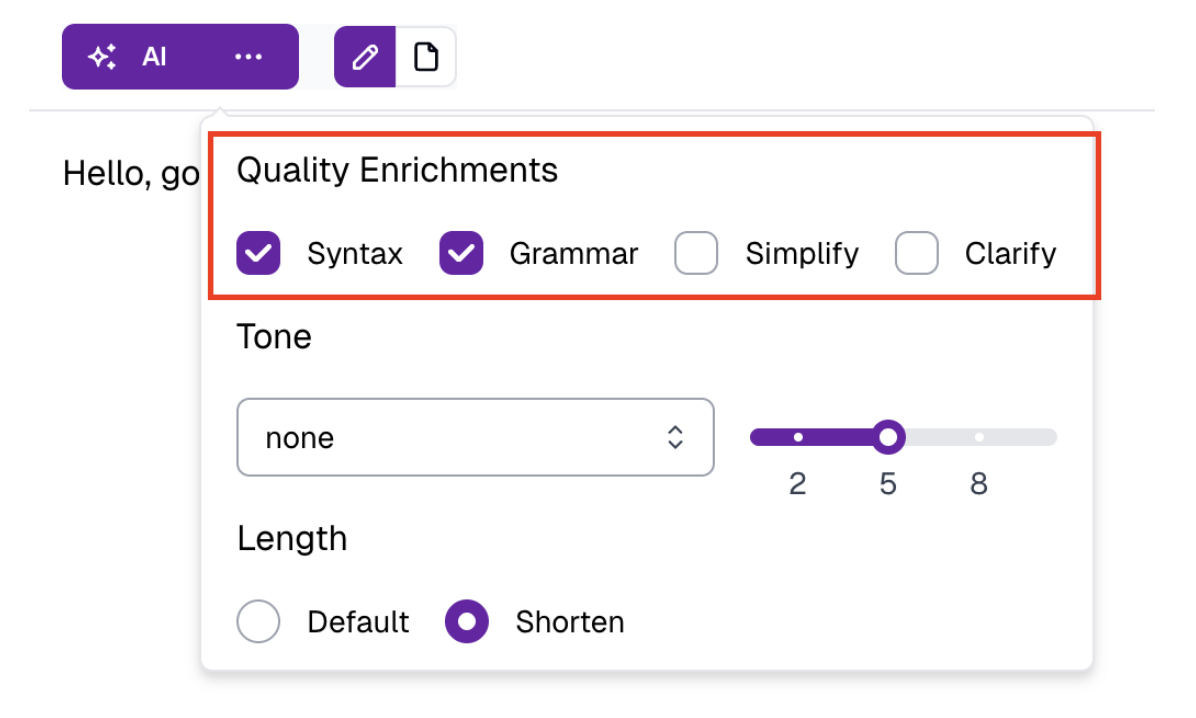
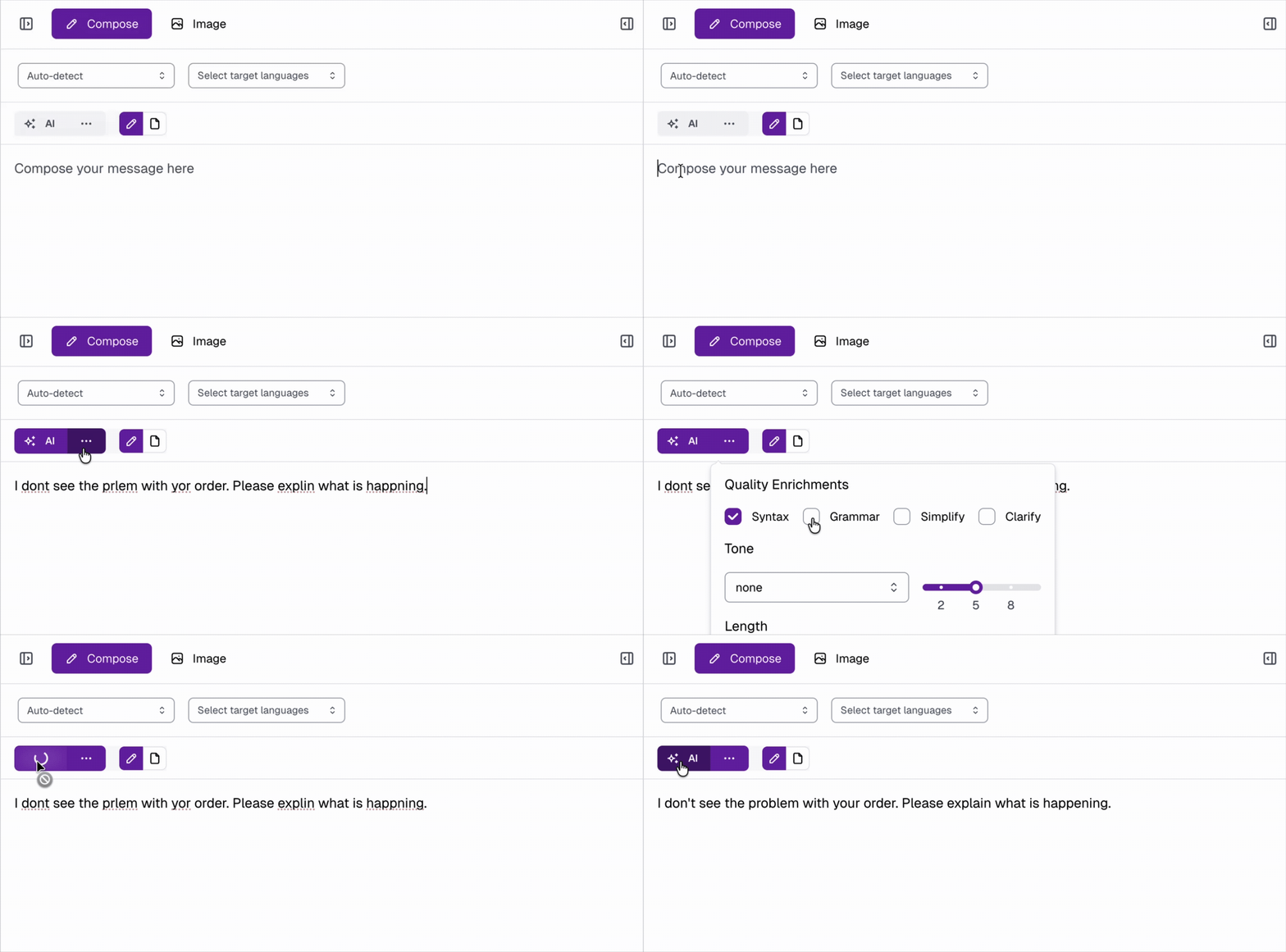
- Click the ellipsis (···) next to the AI button to configure enrichment settings.
-
After composing your message, click the AI button to apply them.
- Input:
I dont see the prlem with yor order. Please explin what is happning. - Output:
I don’t see the problem with your order. Please explain what is happening.
- Input:
My dog ran away and now missing. House is empty. Why and where is my dog. I’m looking. Not able to find. - Output:
My dog has gone missing. I’m looking for him, but I can’t find him. He ran away from home and now the house feels empty. I don’t know why he left or where he went.
2. AI Enrichments
Refine the style and structure of your message to ensure a polished, consistent tone.- Conversation Tone
- Manages formal vs. informal pronouns in languages that distinguish them.
- Maintains a consistent tone, regardless of agent writing style.
- Shorten
- Adjust the length of drafted messages
- Useful for refining messages pasted from other sources (e.g., knowledge bases) that may be too long or overly formal.
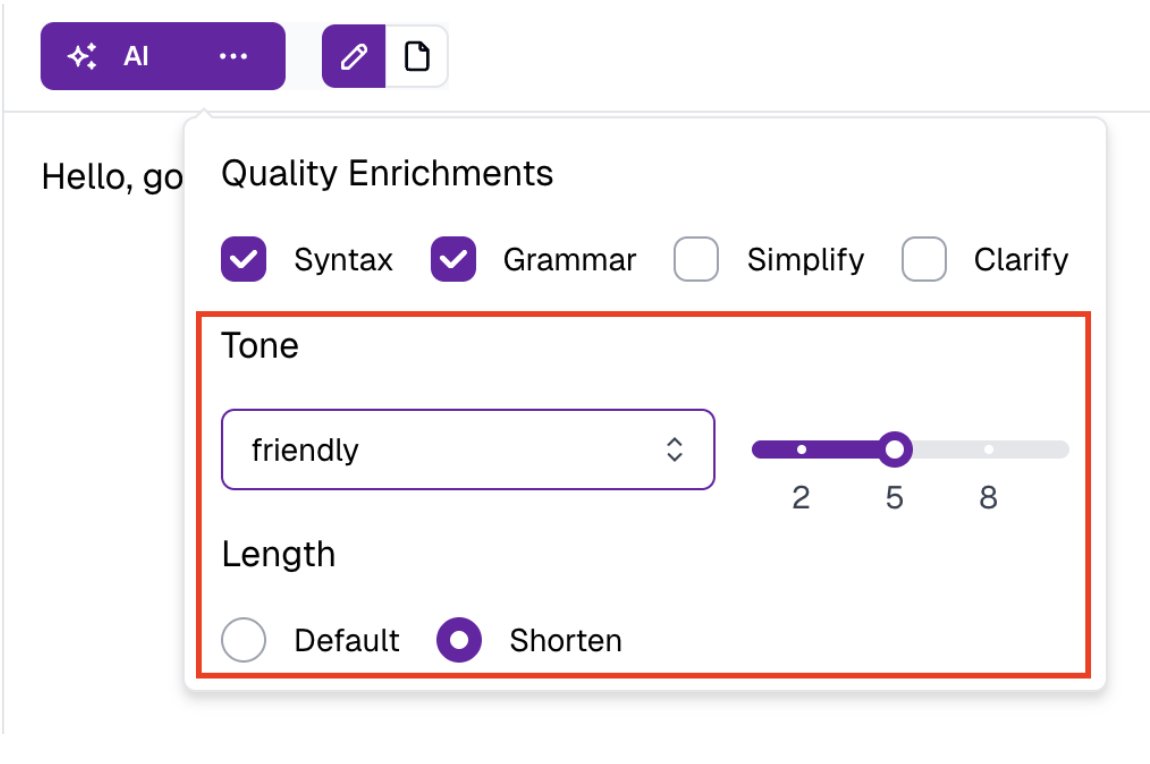
- Click the ellipsis (···) next to the AI button to configure AI enrichment settings.
-
After composing your message, click the AI button to apply them.
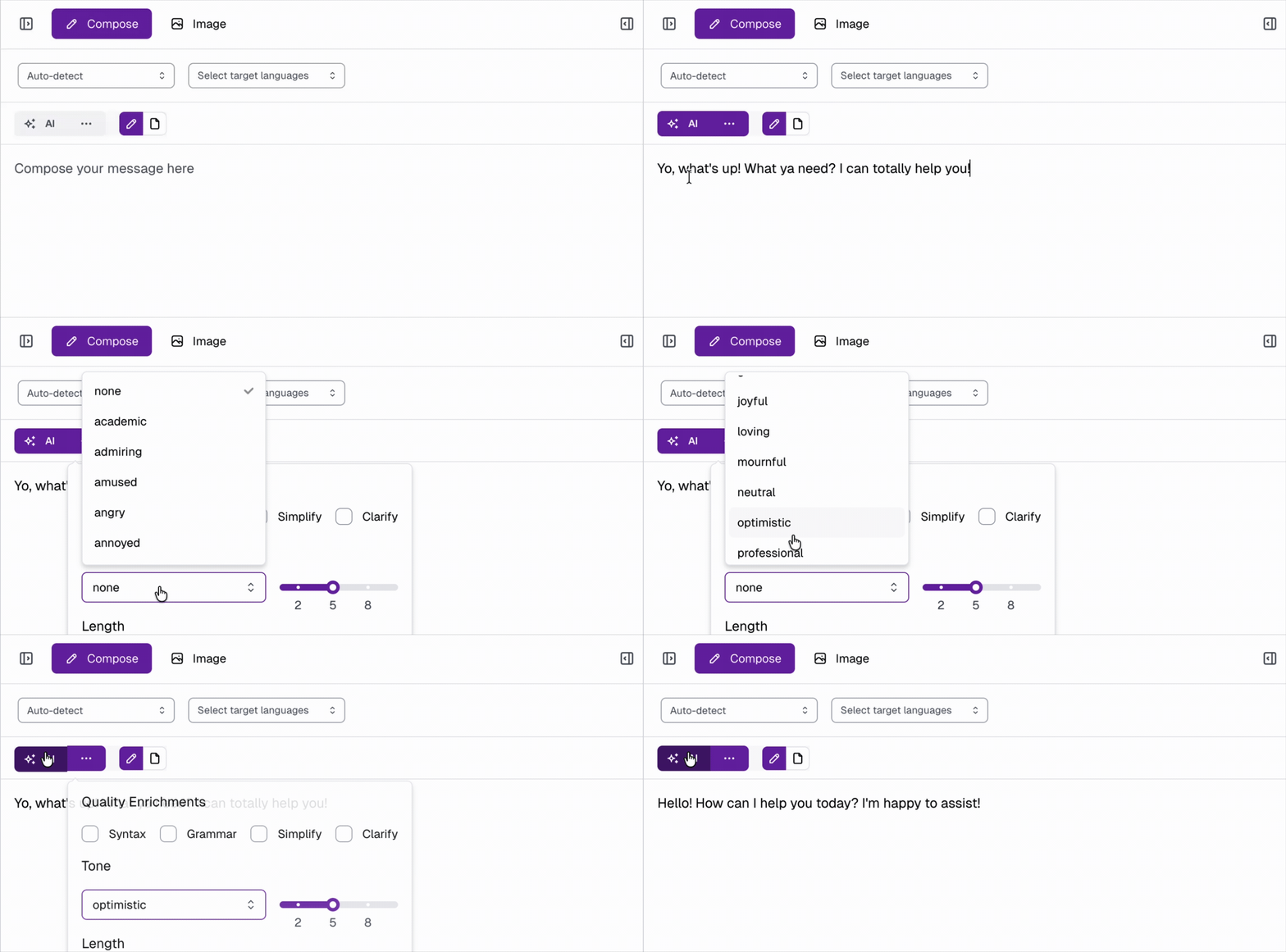
- Input:
Yeah? What do you want? - Output:
Hey there! What can I do for you?
- Input:
Custom phrases allow users to control how specific words or phrases are translated. - Output:
Custom phrases let users control translations of specific words or phrases.
Translating Your Message
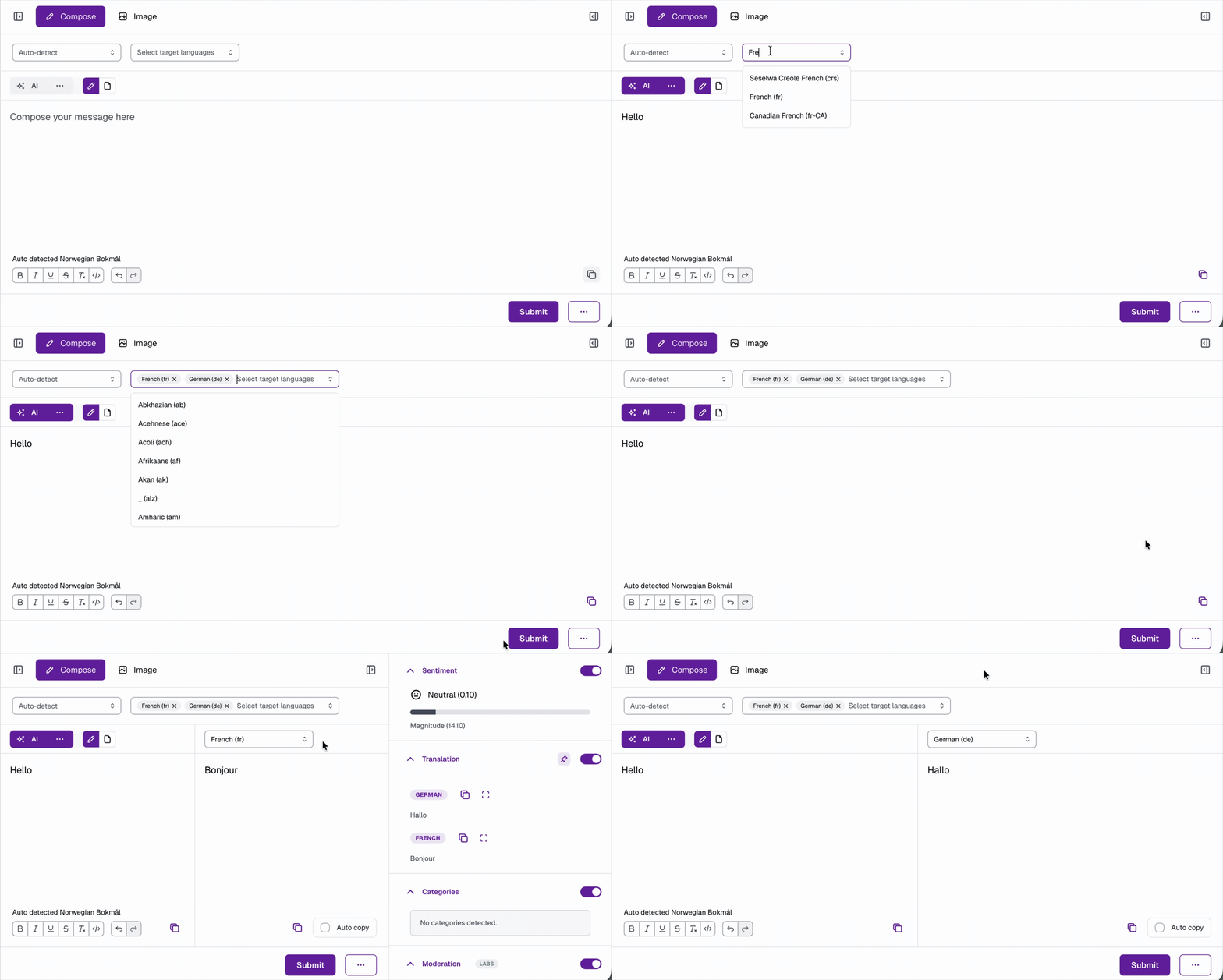
Once you’re satisfied with your composed message:- Select one or more target languages, then click Submit to translate.
- Open the right-hand pane by clicking the Drawer Toggle
-
From this pane, you can view the following details of the translated message (each can be turned off if needed):
- Sentiment
- Translation
- Category
- Moderation
-
To view translations side by side with your composer, click the Pin button from the translation view.