

Install Steps
Reach out to help@cxconnect.ai if you need any assistance during the process.Create an OAuth Code Authorization / PKCE client
- The Code Authorization / PKCE client will allow frontend communication between Genesys and the cxconnect.ai application
- Log in to your Genesys Cloud organization and create a new OAuth client that uses the Code Authorization / PKCE type. For more information, see Create an OAuth client in the Genesys Cloud Resource Center.
- Add the following to Authorized redirect URI:
- If installing into a Production environment use:
https://genesys.cxconnect.ai/genesys/ - If installing into a Test environment use:
https://test.genesys.cxconnect.ai/genesys/
- If installing into a Production environment use:
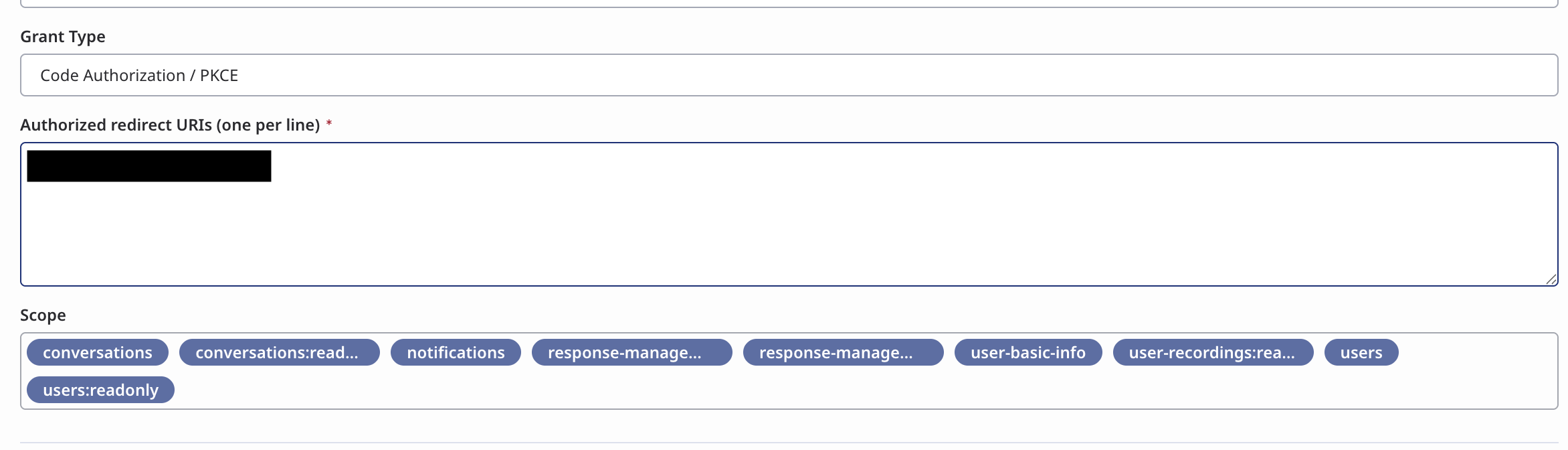
- Add the following Scopes:
conversations, conversations:readonly, notifications, response-management, response-management:readonly, user-basic-info, users, users:readonly - Optional: to filter canned responses by the queue the agent is on, also add
routing:readonly. See Optional: Queue-segmented canned responses. - Provide the generated client ID and client secret from your OAuth client and specify the region where your Genesys Cloud organization is located to cxconnect.ai.
Create an OAuth Client Credentials client
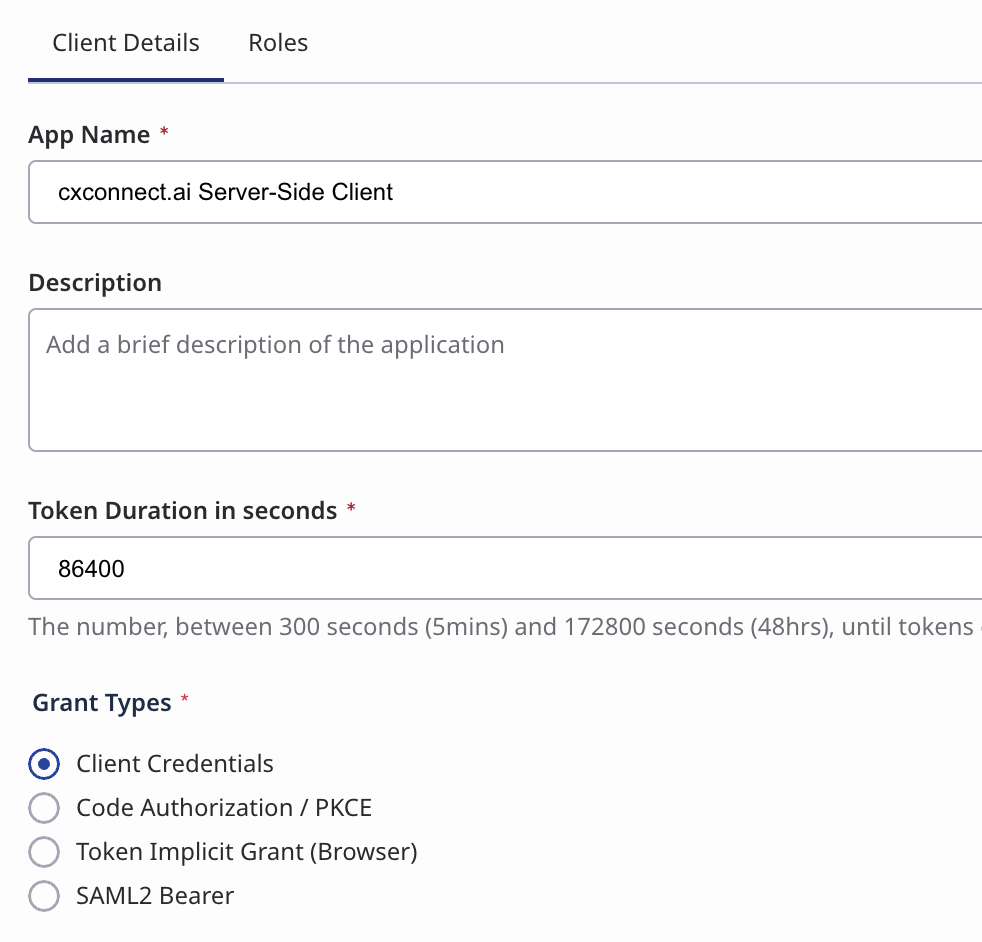
- The Client Credentials client will allow cxconnect.ai servers to communicate and manage the widget integration.
- Create a Client Credentials OAuth grant, similar to above.
- Copy the Client ID and Client Secret for sending to cxconnect.ai during activation.
- This allows cxconnect.ai to make necessary updates to the widget.
-
Add a role with
integrations:integration:editto the created OAuth Client
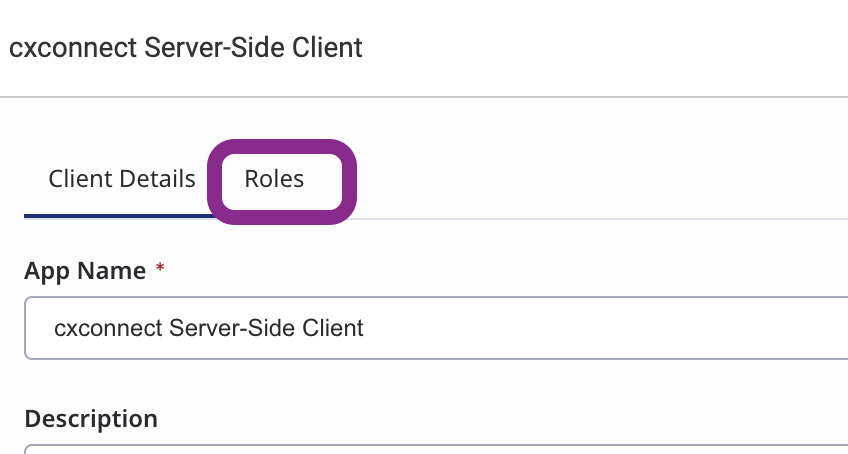
- You may use an existing Role or add a new one
Adding a new Role
- Navigate to Admin > People & Permissions > Roles/Permissions
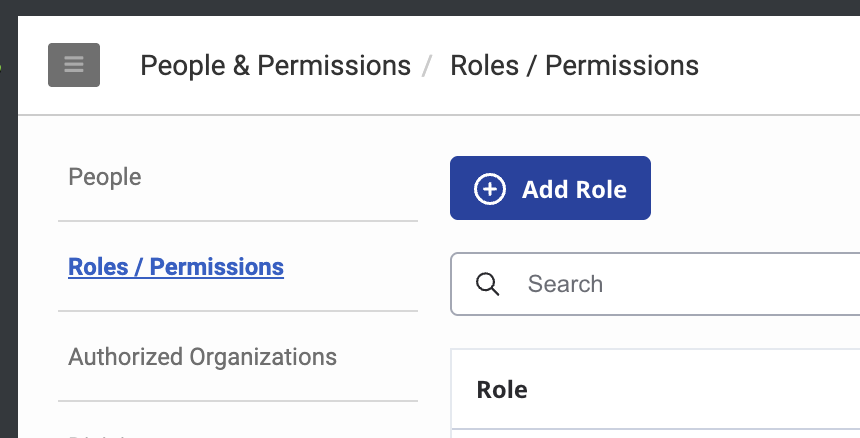
- Click “Add Role”
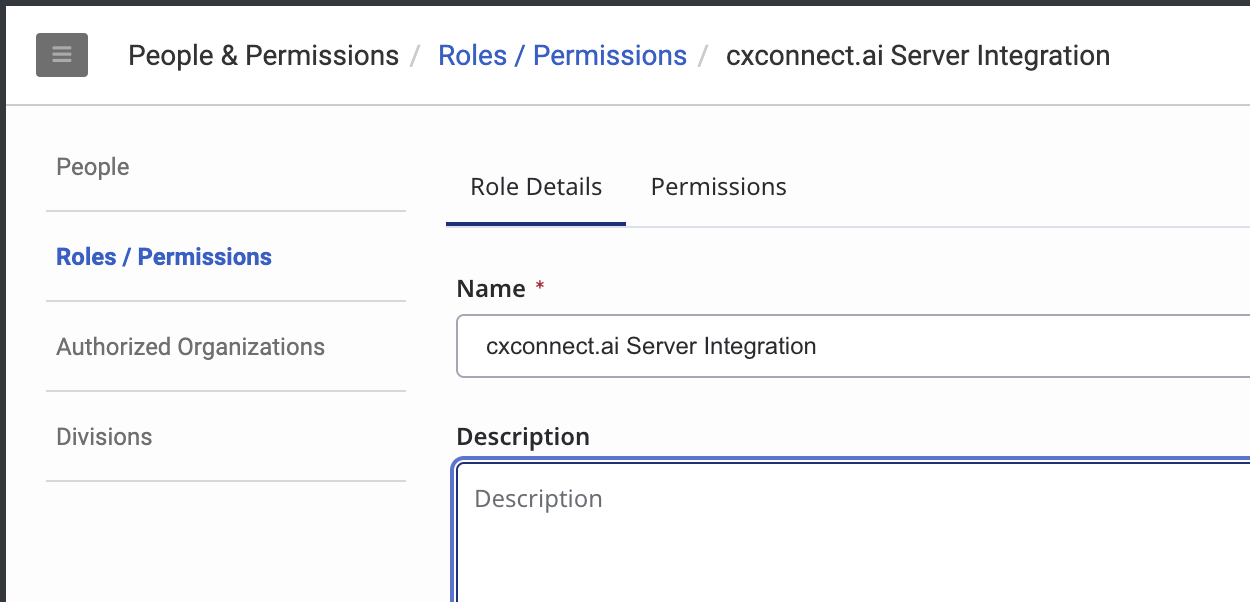
- Name the Role
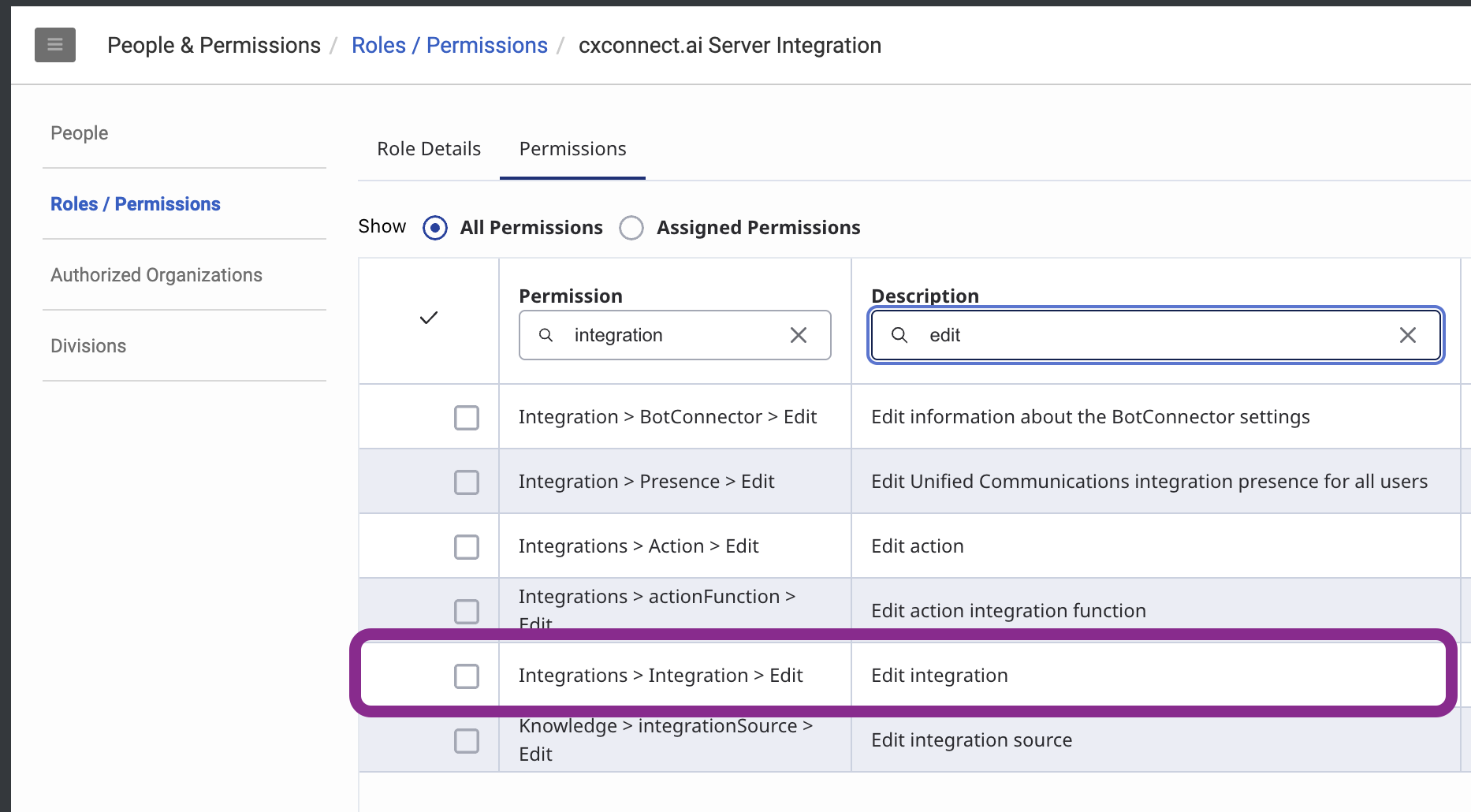
- On the Permissions tab search, find, and select the Integrations > Integration > Edit permission
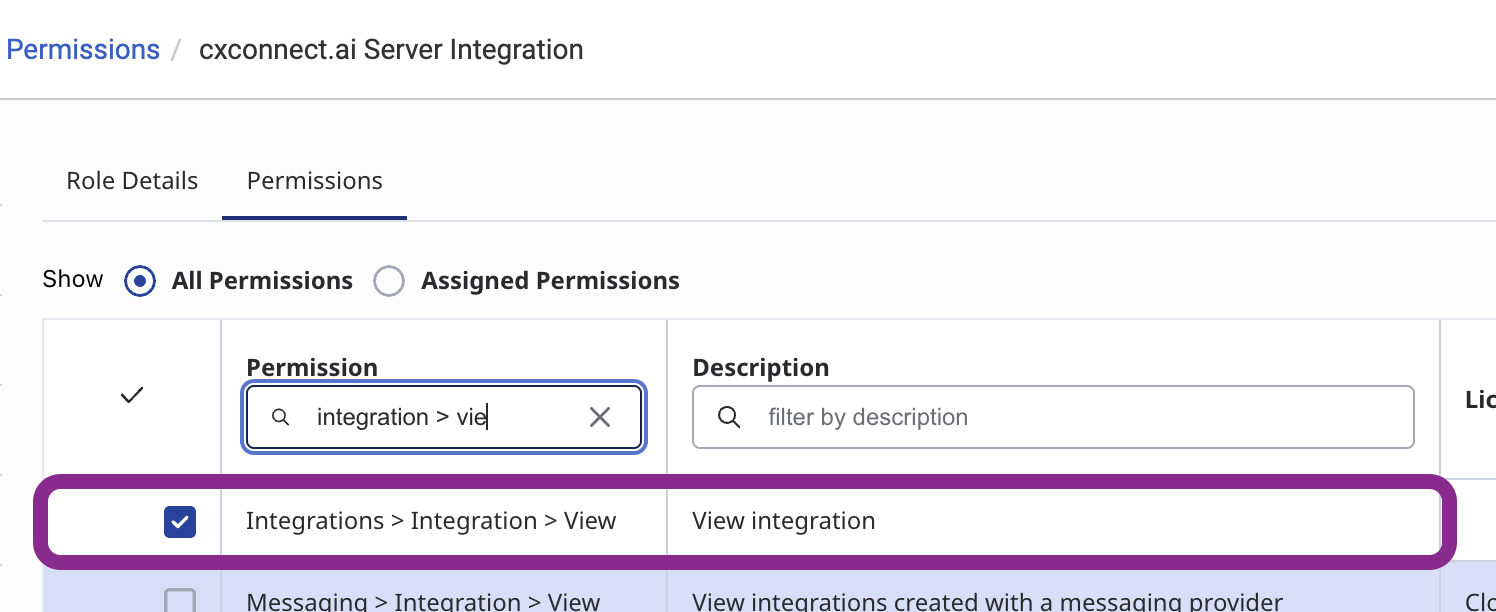
- On the Permissions tab search, find, and select the Integrations > Integration > View permission
Install and activate the App in Genesys Cloud
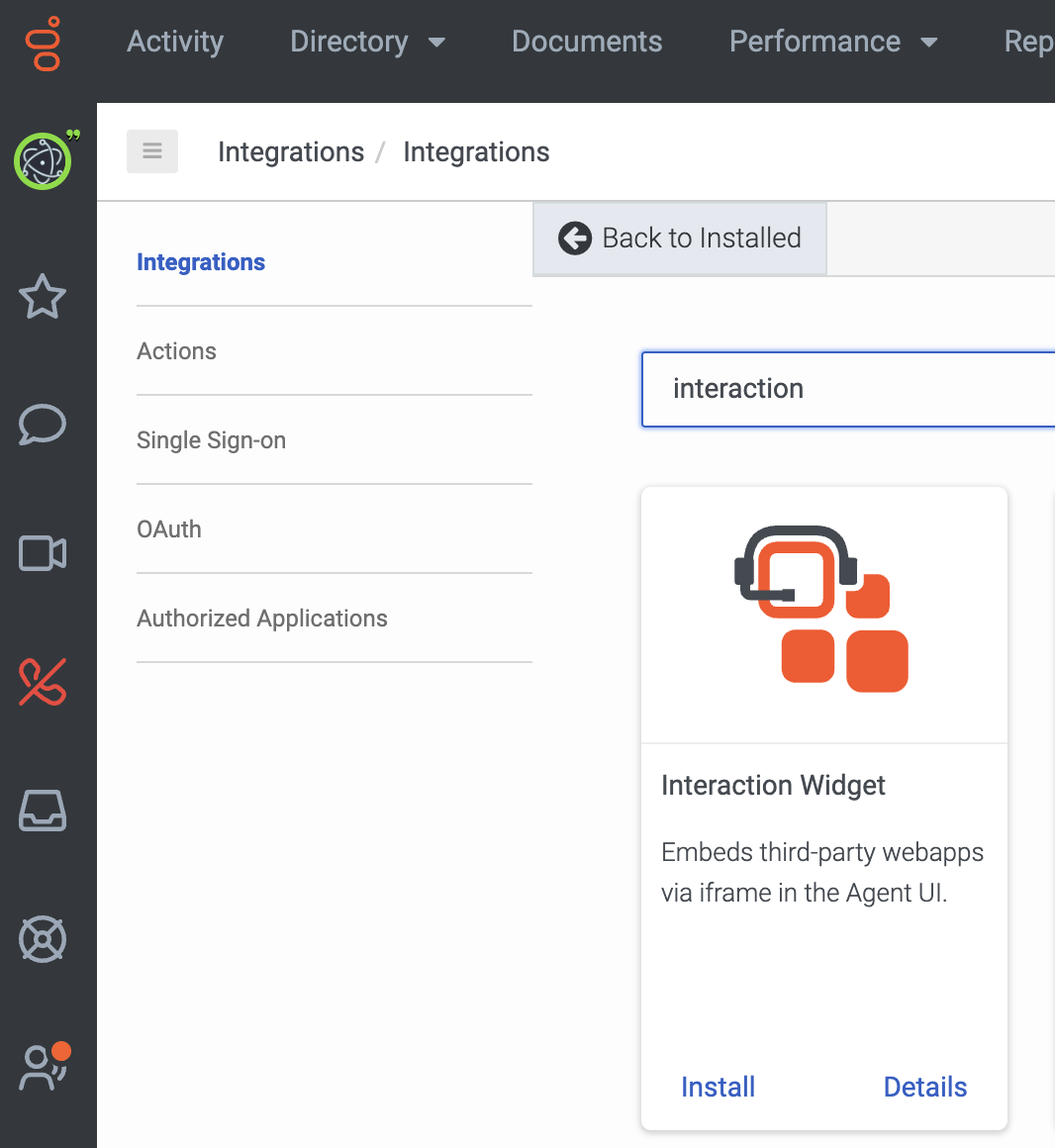
Add the Interaction Widget integration
- Log in to your Genesys Cloud organization and add an integration. For more information, see Add an integration in the Genesys Cloud Resource Center.
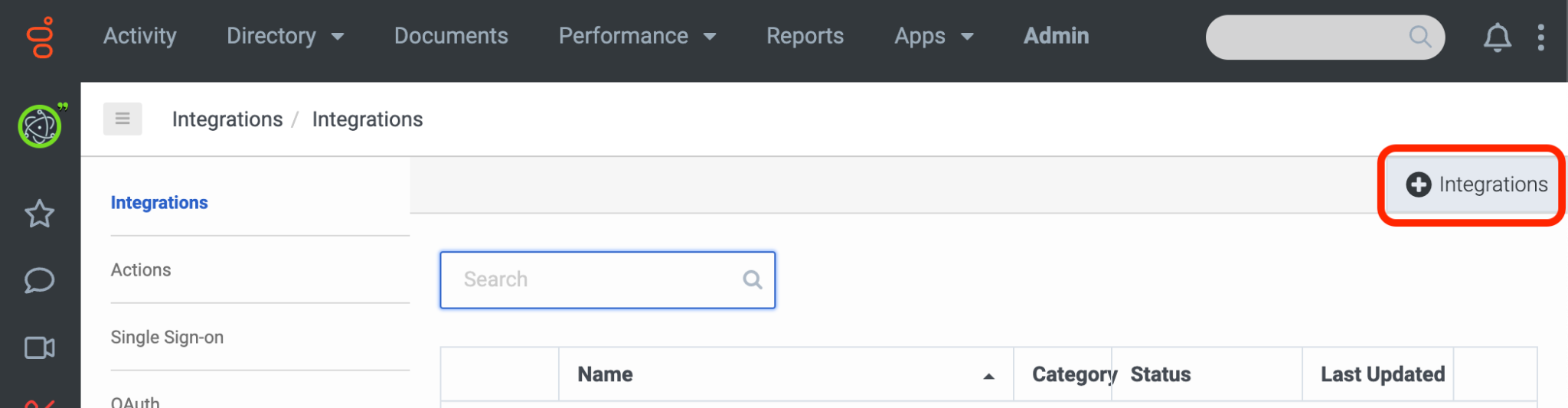
- Install the Interaction Widget integration.
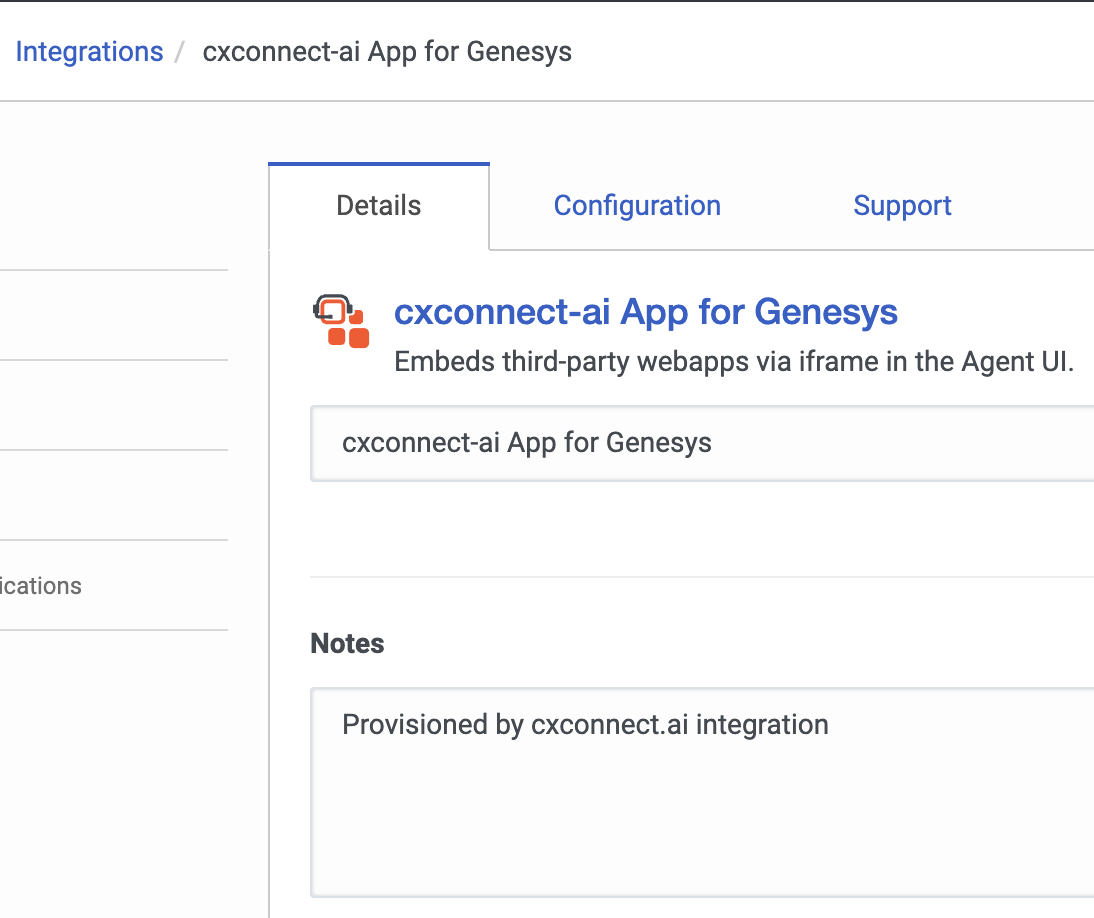
- Name the application.
Configure the Application URL
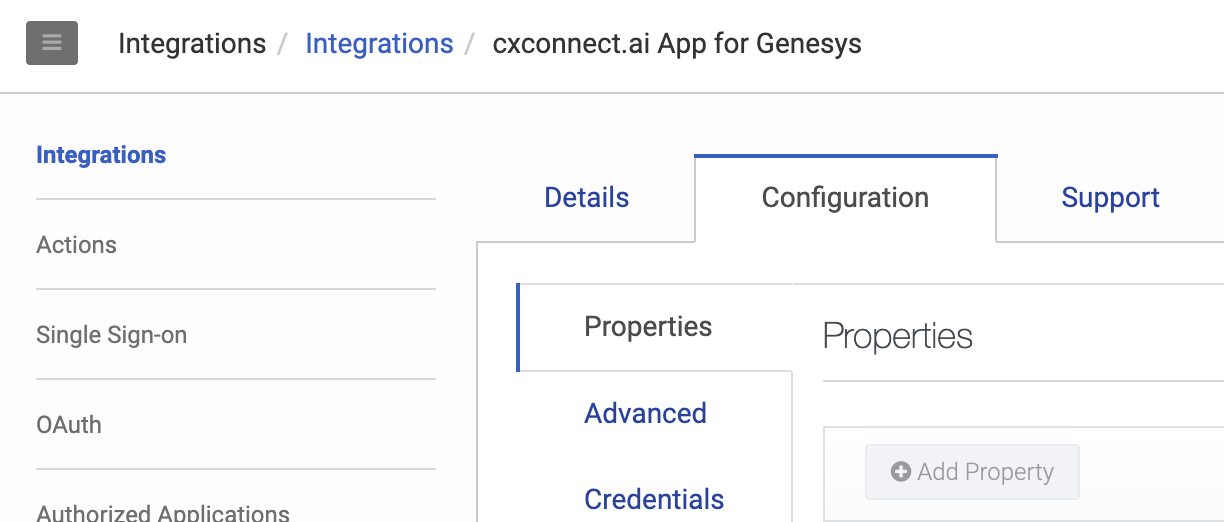
- Click the Configuration tab.
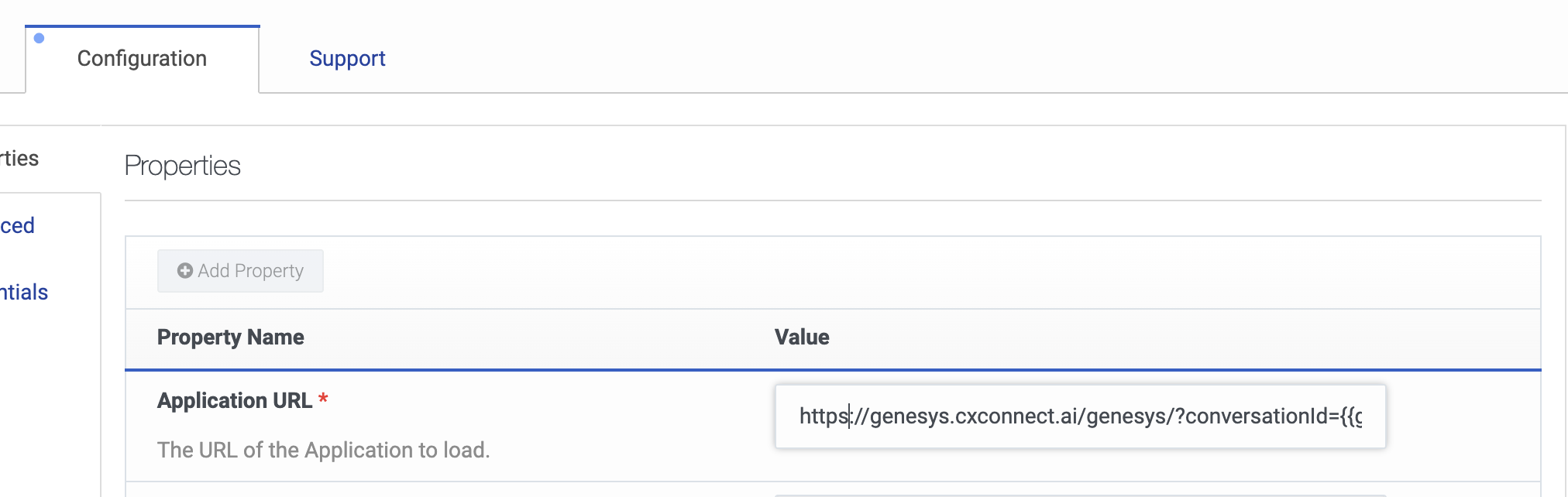
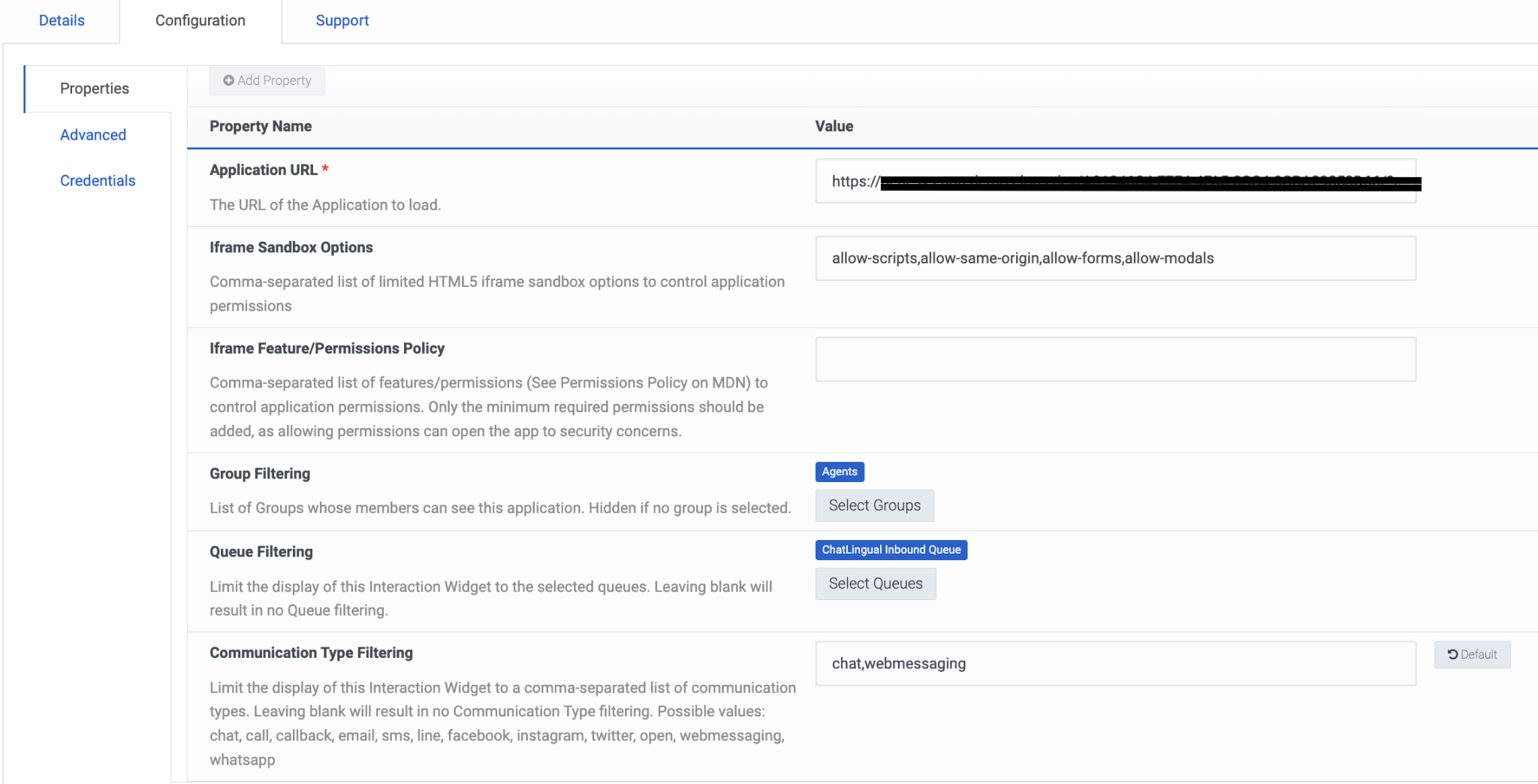
- In the Application URL box, type the URL of the web application. Be sure to specify the full URL, beginning with https:
Configure Iframe Sandbox Options
- In the Iframe Sandbox Options box, add the following:
Set Group and Queue Filtering
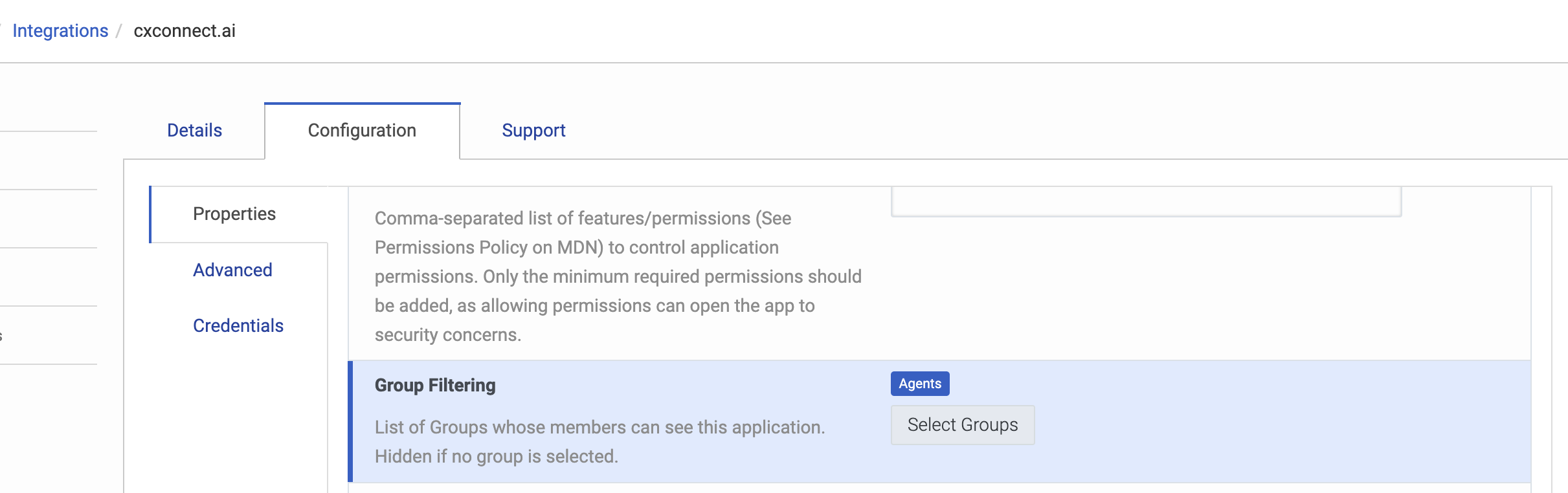
- To limit access to specific groups of agents, in Group Filtering, select the groups that can use the application. Note: if no groups are assigned, no one will be able to see the app.
- To limit access to specific queues, click Select Queues and select the queues that can use the application.
- In the Communication Type Filtering box, type: chat,webmessaging
Configure Advanced Settings
- Click Advanced and enter the following code in the text area. Then save and activate the integration.
Activating your cxconnect.ai widget
-
Once your integration widget is successfully created cxconnect.ai must have the following to activate the installation:
- The installed widget ID, usually found in the URL, example:
- Your organization ID
- Your Genesys Cloud region (e.g.,
us_east_1,eu_west_1, etc.) reference - The frontend OAuth Code Authorization / PKCE client ID and client secret created above
- The backend OAuth Credentials Client ID and Client Secret created above.
- You may email these contents directly to help@cxconnect.ai or securely send in whichever way your organization typically sends similar information.
Accessing the Application
In your agent conversation view, if you have access, the cxconnect.ai application should now be discoverable!\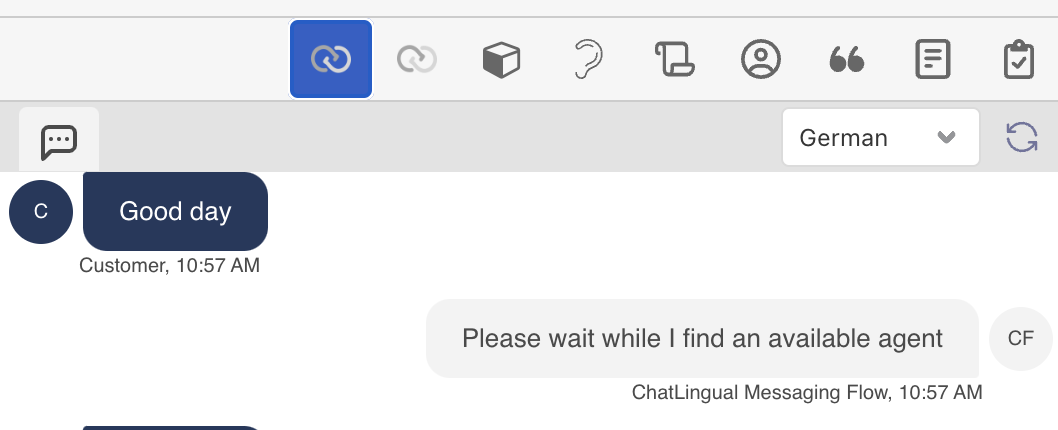
Optional: Queue-segmented canned responses
This step is optional. The cxconnect.ai app works without it. If you skip it, agents still see canned response libraries they are allowed to access in Genesys (by division and role). They will not get extra filtering based on the queue’s Canned Responses settings on each queue. Enable this only if you use queue segmentation in Genesys (libraries assigned per queue under Contact Center → Queues → [queue] → Canned Responses) and you want the embedded app to match the native agent experience.What this enables
When an agent is on an interaction, the app can read the conversation’s queue and apply that queue’s canned response library rules:- All libraries — same as today: all libraries the agent can access
- Selected libraries — only libraries assigned to that queue
- None — no canned responses in the app for that queue
Add routing scope to the PKCE OAuth client
Queue filtering uses the Genesys Routing API (GET /api/v2/routing/queues/{queueId}). The Code Authorization / PKCE client must include a read-only routing scope.
- In Genesys Cloud, open Admin → Integrations → OAuth (or your OAuth client list) and edit the same PKCE client used for the widget (the one whose scopes are listed in Create an OAuth Code Authorization / PKCE client).
-
Under Scopes, add
routing:readonly. If your org’s OAuth UI groups scopes differently, use the read-only Routing scope equivalent torouting:readonly. - Save the OAuth client.
-
The full Scopes list on that client should include routing, for example:
conversations, conversations:readonly, notifications, response-management, response-management:readonly, routing:readonly, user-basic-info, users, users:readonly

Configure queue libraries in Genesys
OAuth scope alone does not assign libraries to queues. If queue libraries are not already configured, in Genesys:- Go to Contact Center → Queues and open the queue.
- Open the Canned Responses (or equivalent) tab.
- Choose All libraries, Specific libraries, or None, and save.
Verify
- Open a web messaging or chat interaction on a queue that uses Specific libraries.
- Open canned responses in the cxconnect.ai panel.
- Confirm only libraries allowed for that queue appear, and that search results follow the same rules.
canned_response_queue_filter_failed in browser logs. The app stays usable, without queue-based filtering.
Troubleshooting
For help, contact help@cxconnect.ai.