> ## Documentation Index
> Fetch the complete documentation index at: https://docs.cxconnect.ai/llms.txt
> Use this file to discover all available pages before exploring further.
# User Management
> Admin portal user management.
# User Management
## Creating a New User in the Admin Portal
New user creation is managed by your organization’s **Org User Managers/Org owners**. If you need access, please reach out to one of your Admins.
Once a new user is added and access is authorized, they will be able to log in and use [**Studio**](https://studio.cxconnect.ai/).
### Steps to Add a New User
1. **Log in** to the [**Admin Portal**](https://auth.cxconnect.ai/).
2. Navigate to the **Users** tab at the top of the screen.
3. Click **New** (upper right corner). The **Create a New User** interface opens.
 4. In the **Email** address field, enter the user’s email address.
5. Copy the portion before the @ symbol and paste it into the **User Name** field.
**Note**: For users within the same organization, the email address and user name will be identical.
6. Enter the user’s **Given Name** and **Family Name** in the respective fields.
7. You may either complete the remaining fields as needed, or scroll down and click **Create**.
The new user is now created and will receive an email with a code and a link to generate a password.\
\
**Next Step:** The user still needs role assignments.
## Assigning Roles to Users in the Admin Portal
\
Authorization access is managed by your organization’s **Org Owners/Org User Managers**. Every user in the system must have at least one role assigned to access **Workbench**, **Studio**, or the **Admin Portal**. Roles define the level of access and permissions a user has:
* **Org Owner** – Users who have the highest level of permissions over all administrative tasks in the organization, such as adding other users, managing SSO, and managing API keys.
* **Admin** – Users with permission to manage custom phrases in Studio.
* **Agent** – Users with permission to use translations in Workbench.
Role assignments ensure that the right people have the right access to perform their tasks.
### Assigning the Org Owner and Org User Manager Role
1. Log in to the [**Admin Portal**](https://auth.cxconnect.ai/).
2. Navigate to the **Organization** tab (top left).
3. In the top right corner, click the **plus (+) icon** below your user icon to open the **Add a Manager** interface.
4. In the **Email** address field, enter the user’s email address.
5. Copy the portion before the @ symbol and paste it into the **User Name** field.
**Note**: For users within the same organization, the email address and user name will be identical.
6. Enter the user’s **Given Name** and **Family Name** in the respective fields.
7. You may either complete the remaining fields as needed, or scroll down and click **Create**.
The new user is now created and will receive an email with a code and a link to generate a password.\
\
**Next Step:** The user still needs role assignments.
## Assigning Roles to Users in the Admin Portal
\
Authorization access is managed by your organization’s **Org Owners/Org User Managers**. Every user in the system must have at least one role assigned to access **Workbench**, **Studio**, or the **Admin Portal**. Roles define the level of access and permissions a user has:
* **Org Owner** – Users who have the highest level of permissions over all administrative tasks in the organization, such as adding other users, managing SSO, and managing API keys.
* **Admin** – Users with permission to manage custom phrases in Studio.
* **Agent** – Users with permission to use translations in Workbench.
Role assignments ensure that the right people have the right access to perform their tasks.
### Assigning the Org Owner and Org User Manager Role
1. Log in to the [**Admin Portal**](https://auth.cxconnect.ai/).
2. Navigate to the **Organization** tab (top left).
3. In the top right corner, click the **plus (+) icon** below your user icon to open the **Add a Manager** interface.
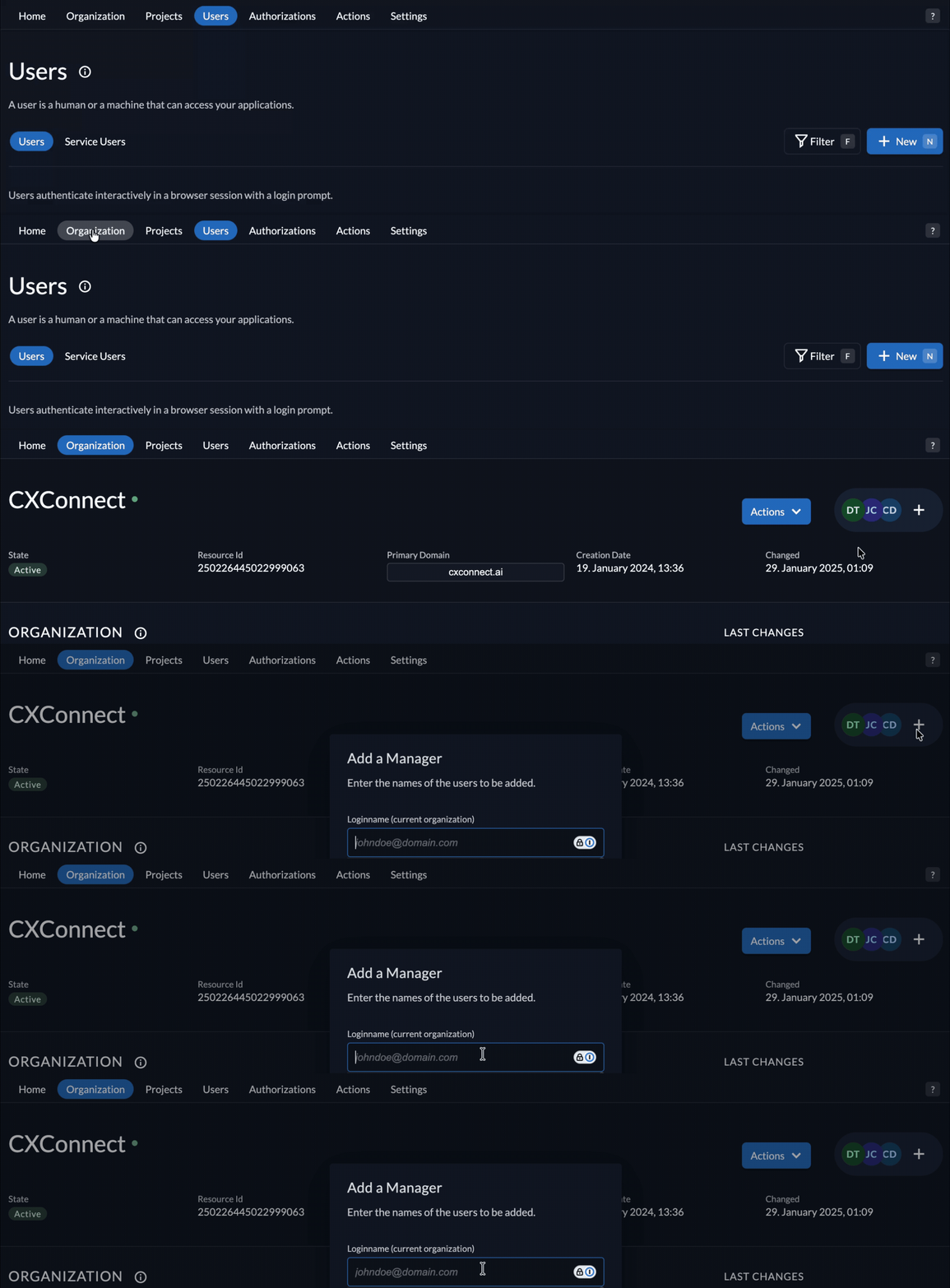 4. Select/Enter the user you want to grant **Org Owner/Org User Manager** permissions.
5. Check the **Org Owner** or **Org User Manager** box.
6. Click **Add** at the bottom.
The user now has Org Owner permissions.
### Assigning Admin and Agent Roles
1. In the [**Admin Portal**](https://auth.cxconnect.ai/), go to the **Users** tab (top bar).
2. Click the **display name** of the user you want to update.
3. From the left menu, select **Authorizations**.
4. In the Authorizations interface, click **New**.
4. Select/Enter the user you want to grant **Org Owner/Org User Manager** permissions.
5. Check the **Org Owner** or **Org User Manager** box.
6. Click **Add** at the bottom.
The user now has Org Owner permissions.
### Assigning Admin and Agent Roles
1. In the [**Admin Portal**](https://auth.cxconnect.ai/), go to the **Users** tab (top bar).
2. Click the **display name** of the user you want to update.
3. From the left menu, select **Authorizations**.
4. In the Authorizations interface, click **New**.
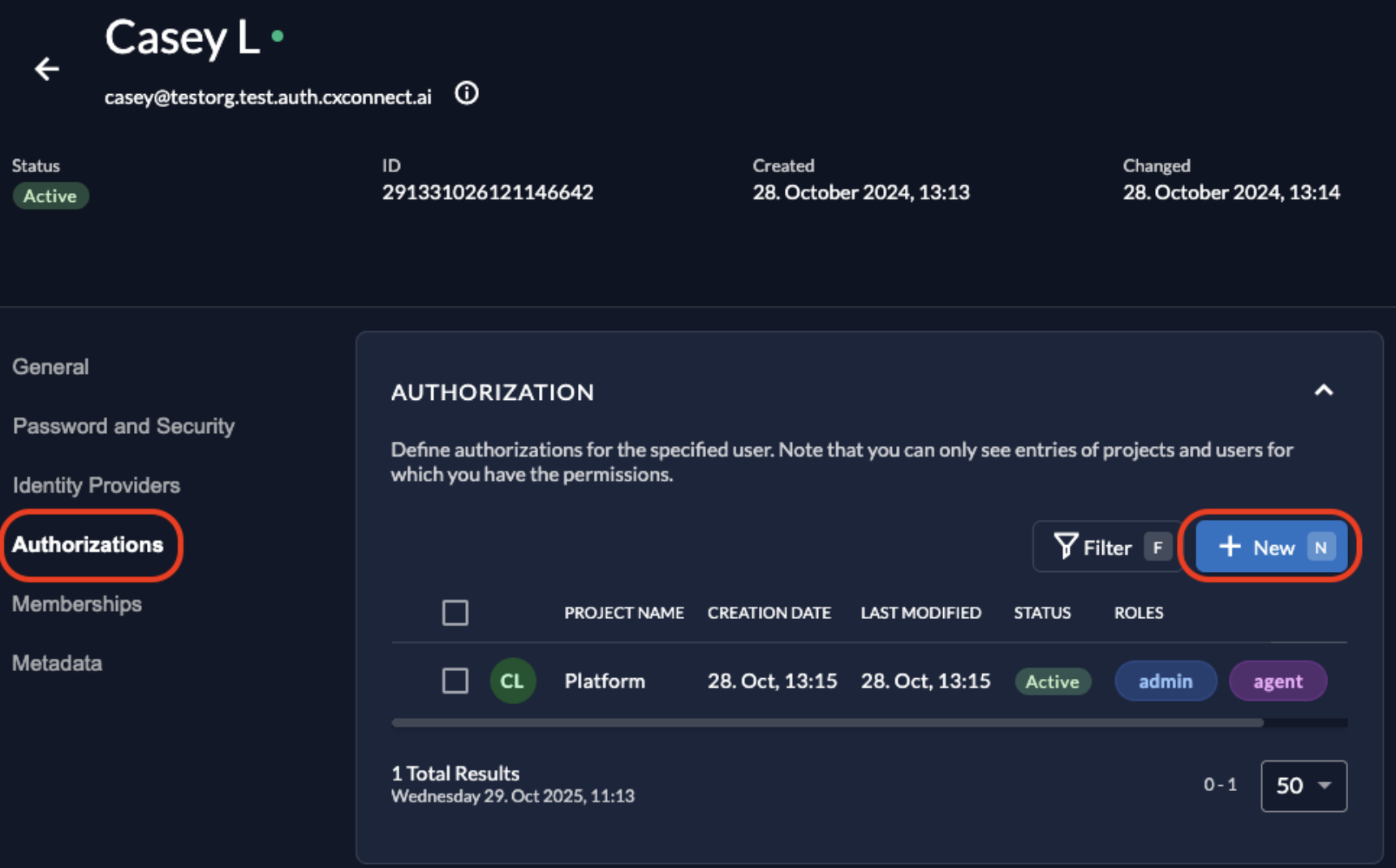 5. Scroll to **Search for a Project**, and set the **Project Name** field to **Platform**.
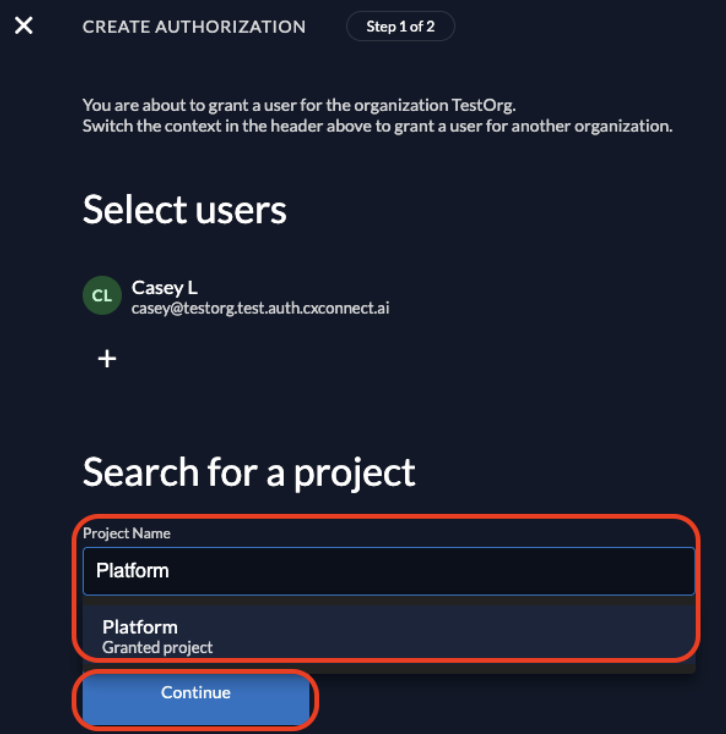 6. Click **Continue**.
7. Assign one or both roles:
* **Admin** – grants access to manage custom phrases in Studio.
* **Agent** – grants access to translations in Workbench.
8. **Save** your changes.
**Note**: A user can have both permissions, but as a best practice, admin roles should be limited to those who manage content to help maintain its integrity.
6. Click **Continue**.
7. Assign one or both roles:
* **Admin** – grants access to manage custom phrases in Studio.
* **Agent** – grants access to translations in Workbench.
8. **Save** your changes.
**Note**: A user can have both permissions, but as a best practice, admin roles should be limited to those who manage content to help maintain its integrity.