> ## Documentation Index
> Fetch the complete documentation index at: https://docs.cxconnect.ai/llms.txt
> Use this file to discover all available pages before exploring further.
# API Key Management
> This allows an Org Owner in the Admin Portal to create a Service User account and manage API Keys for authentication purposes of cxconnect.ai's products.
# API Key Management
## Creating a Service User account to manage API Keys
You must be an Org Owner in the [Admin Portal](https://auth.cxconnect.ai/) to create a Service User Account.
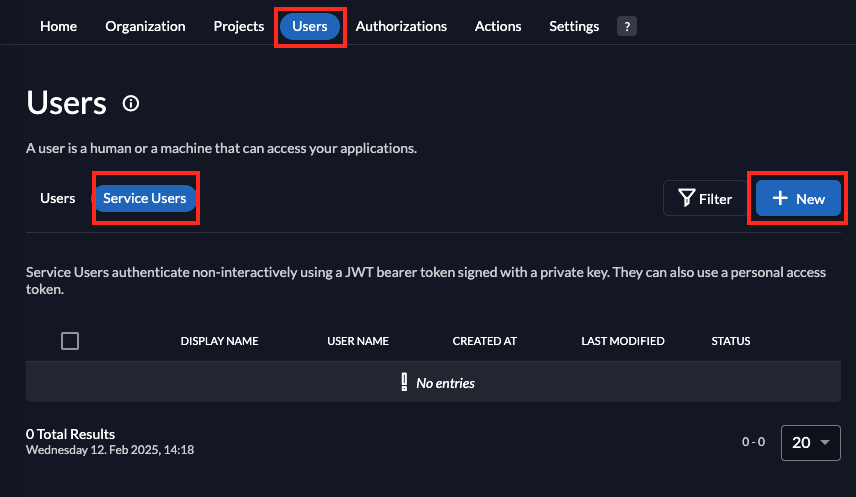
Navigate to the Users tab at the top of the screen and then tab over from the **Users** tab in the interface to **Service User.** Click on **New** in the right corner of your screen.
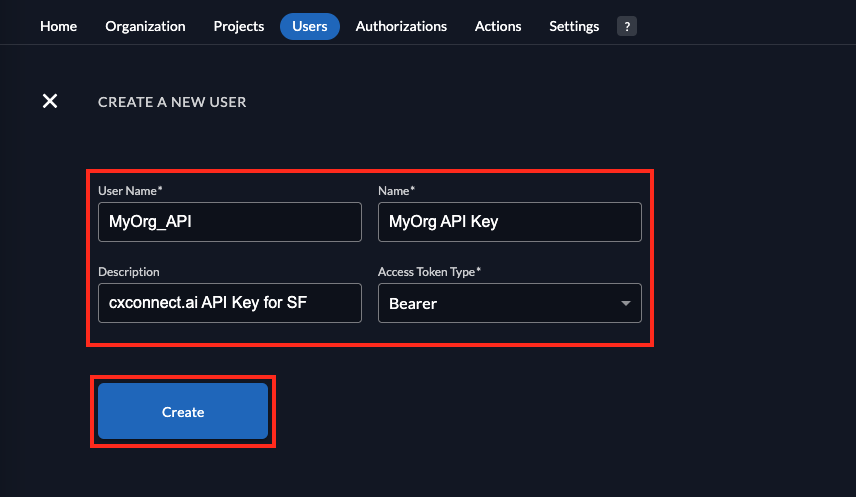
 Fill in the required fields in the **Create a New User** interface selecting **Bearer** as the **Access Token Type**. Then click **Create**.
 Click **Save** when the Service User Details are confirmed on the next screen.
A new Service User has been created and API keys can be managed through this account.
\[Video placeholder]
## Generating a new API Key
The API key can be used for authentication with cxconnect.ai’s APIs. You must be an Org Owner to generate a new API Key.
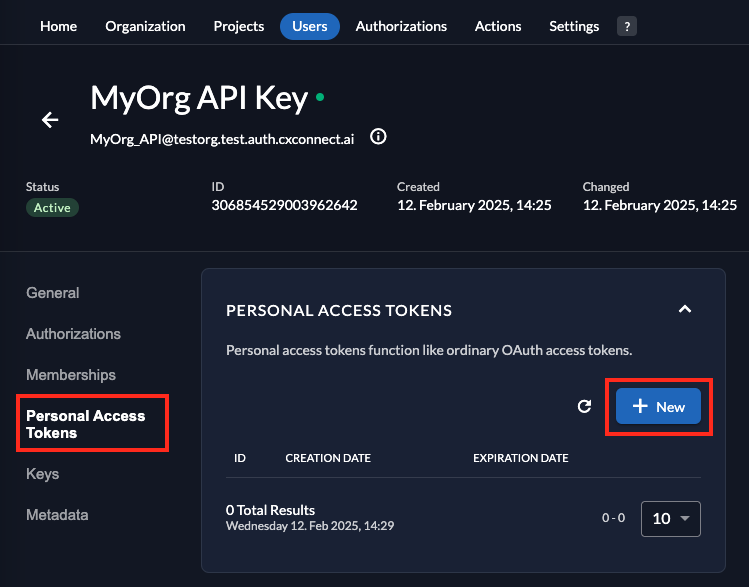
Navigate to **Users > Service Users** and select your Service User account. In the interface that opens, click on **Personal Access Tokens** in the Menu to the left. Click the **New** button on the right side of the page.
Click **Save** when the Service User Details are confirmed on the next screen.
A new Service User has been created and API keys can be managed through this account.
\[Video placeholder]
## Generating a new API Key
The API key can be used for authentication with cxconnect.ai’s APIs. You must be an Org Owner to generate a new API Key.
Navigate to **Users > Service Users** and select your Service User account. In the interface that opens, click on **Personal Access Tokens** in the Menu to the left. Click the **New** button on the right side of the page.
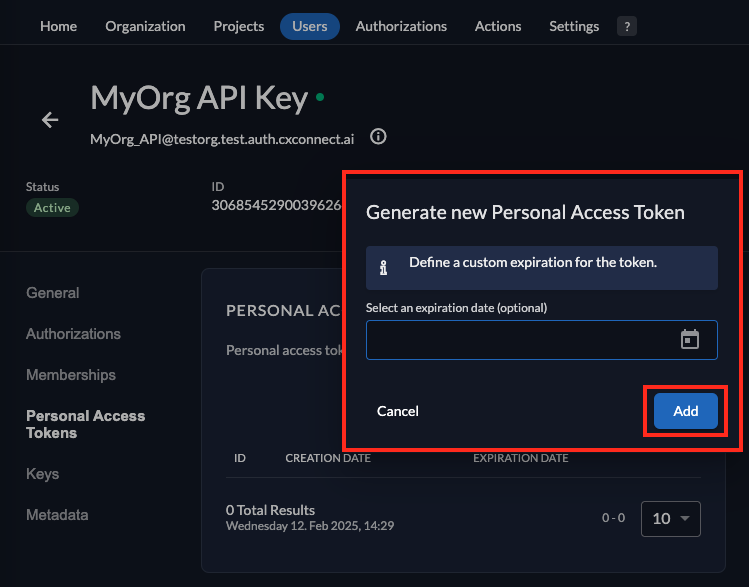
 If you wish for your API key to expire, you can now select the date. Note, that you will need a new API key when the key expires per the date you set. If your organization does not require rotating your API keys at a pre-defined interval, you may skip selecting the date and click on **Add**. Your key will never expire.
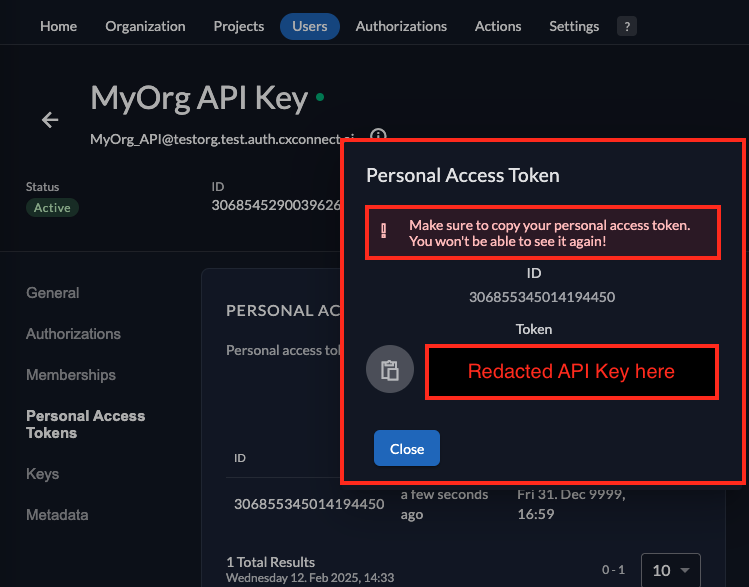
 You will be presented with an API key.
Note, the key does not save for recall when exiting the interface, so you need to copy and store it in a safe location. For security reasons, when you exit this screen, you will no longer be able to see the API key.
You will be presented with an API key.
Note, the key does not save for recall when exiting the interface, so you need to copy and store it in a safe location. For security reasons, when you exit this screen, you will no longer be able to see the API key.
 When generating a new API key, it will replace the existing one with the new one.