> ## Documentation Index
> Fetch the complete documentation index at: https://docs.cxconnect.ai/llms.txt
> Use this file to discover all available pages before exploring further.
# Messaging App v3+
> The user guide for the cxconnect.ai messaging app for Salesforce
Discusses the features and functionality of cxconnect.ai's Salesforce app in regard to the Messaging Application and its Components.
## Table of Contents
* [Functionality](#functionality)
* [Language Detection](#language-detection)
* [Quick Text](#quick-text)
* [End Chat](#end-chat)
* [Translation History](#translation-history)
* [AI Enrichments](#ai-enrichments)
* [Currently Unsupported Features](#currently-unsupported-features)
## Functionality
* The cxconnect.ai Messaging application for Salesforce allows for real-time translations between customers and agents within the Salesforce messaging channels.
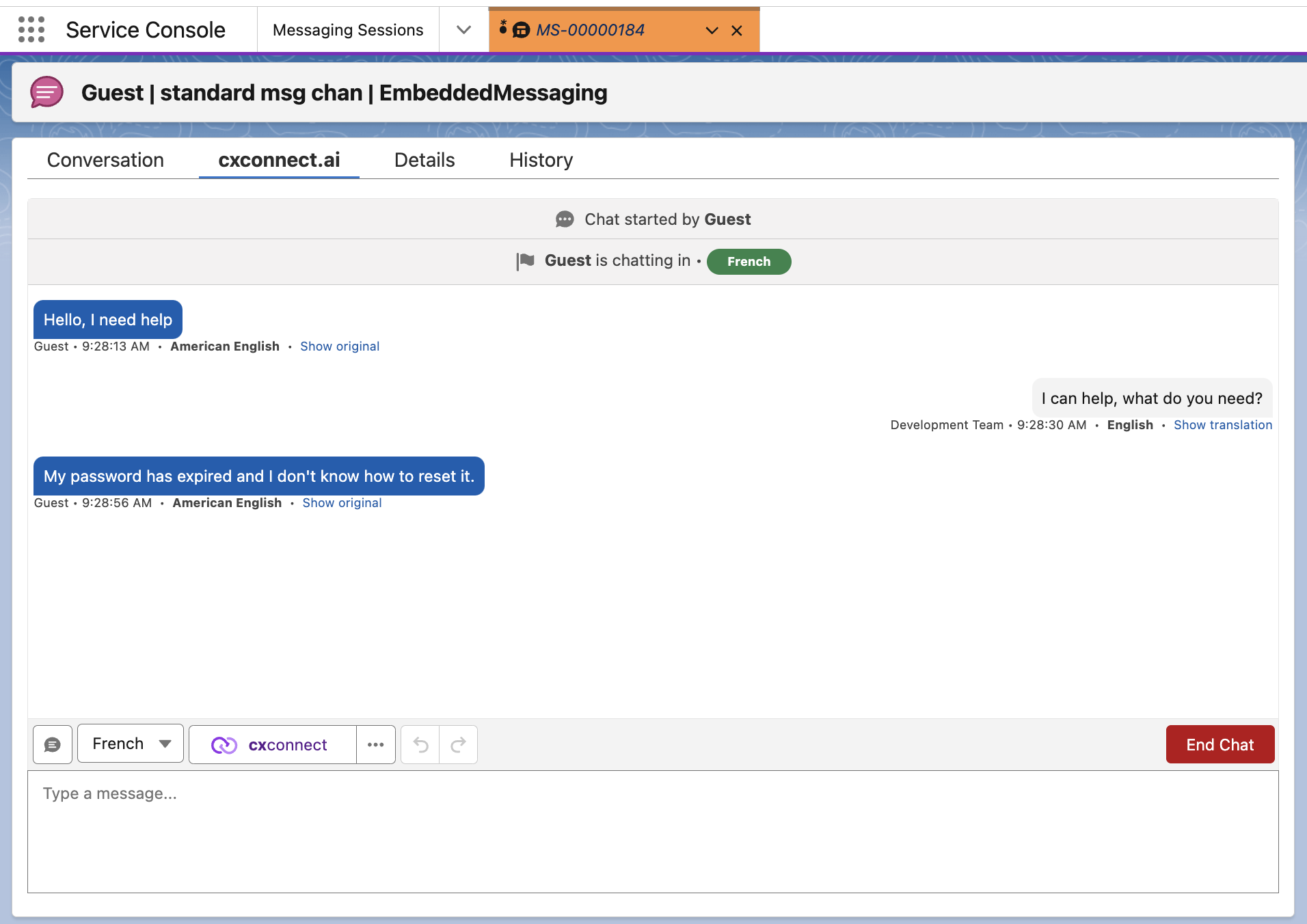 * Customer and agent messages allow agents to view both the translated and original messages.
## Language Detection
* When a conversation is started and activated within the Messaging application, after a sufficient number (3 successfully identified from customer) of messages have been exchanged between the customer and agent the language is assumed to be the conversation's "active language".
* If cxconnect detects a change in the language a small visible alert is placed on the message.
* Customer and agent messages allow agents to view both the translated and original messages.
## Language Detection
* When a conversation is started and activated within the Messaging application, after a sufficient number (3 successfully identified from customer) of messages have been exchanged between the customer and agent the language is assumed to be the conversation's "active language".
* If cxconnect detects a change in the language a small visible alert is placed on the message.
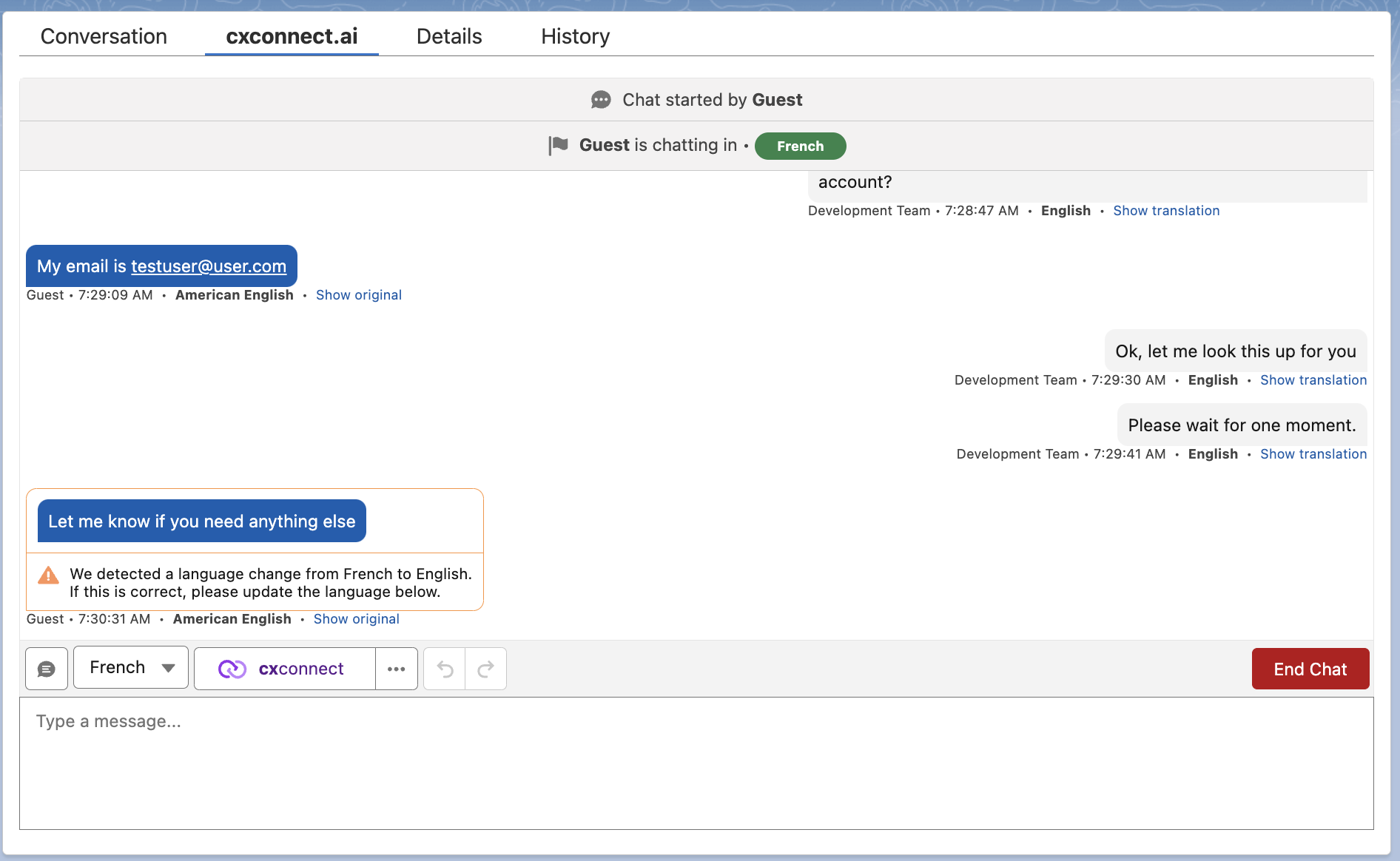 * If the change in detection is correct the **agent has the option** of changing the language via the language drop down.
* When the language is chosen, via the language dropdown, a field is updated on the MessagingEndUser that persists the choice **until** a new selection is made.
## Quick Text
* The application provides a "Quick Text" button that mimics the native Salesforce application's quick text option.
* If the change in detection is correct the **agent has the option** of changing the language via the language drop down.
* When the language is chosen, via the language dropdown, a field is updated on the MessagingEndUser that persists the choice **until** a new selection is made.
## Quick Text
* The application provides a "Quick Text" button that mimics the native Salesforce application's quick text option.
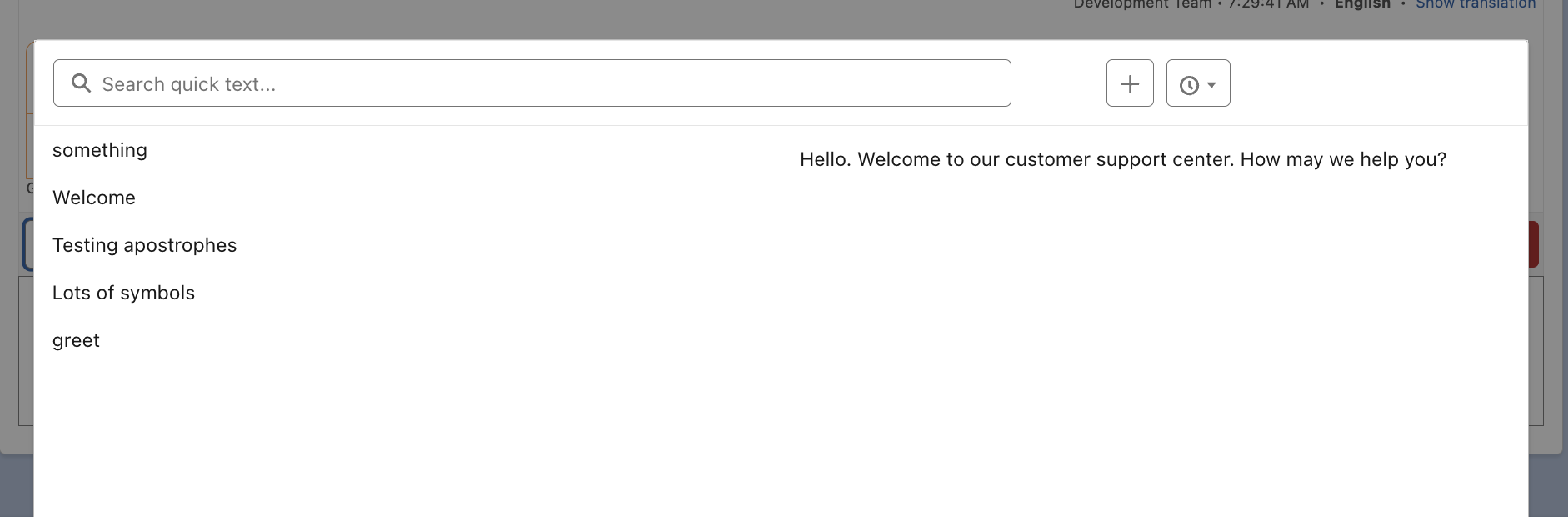 * This hooks into the organization's Quick Text library so agents can utilize existing work flows.
## End Chat
* When an agent is ready to end a conversation, the End Chat button can be clicked.
* This hooks into the organization's Quick Text library so agents can utilize existing work flows.
## End Chat
* When an agent is ready to end a conversation, the End Chat button can be clicked.
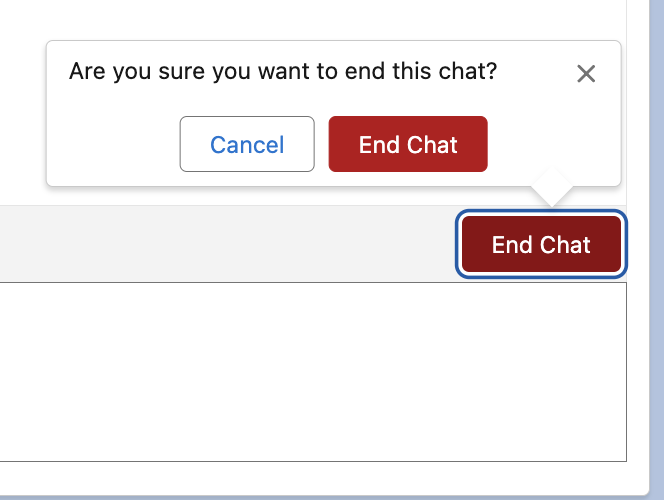 * This is a two-step process, to prevent accidental conversation ends. An agent must click to end the conversation in the additional pop up.
## Translation History
* Each message displayed in the Messaging application will generate an associated Translation History record that holds a detailed look at the message's contents.
* This is a two-step process, to prevent accidental conversation ends. An agent must click to end the conversation in the additional pop up.
## Translation History
* Each message displayed in the Messaging application will generate an associated Translation History record that holds a detailed look at the message's contents.
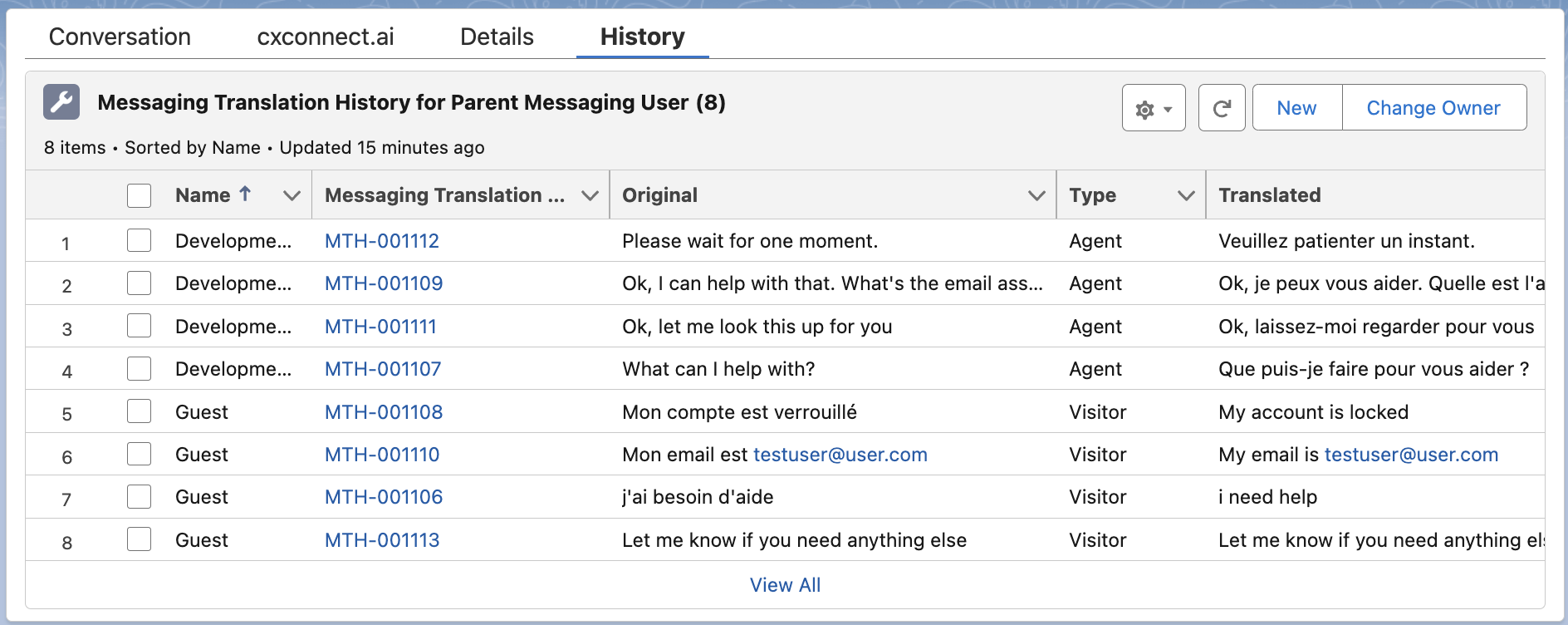 * The available field on the MessagingTranslationHistory\_\_c object are as follows:
* **Content\_\_c**: The text content of the original message that is being translated.
* **IsLanguageSupported\_\_c**: A boolean field indicating whether the source or target language is supported for translation by the system.
* **IsTranslationEnabled\_\_c**: A boolean field indicating whether translation is enabled for the specific messaging session or user.
* **Messaging\_Session\_Translation\_\_c**: A reference to the MessagingSession object, linking the translation history to the session in which the message was sent.
* **Messaging\_User\_Translation\_\_c**: A reference to the MessagingEndUser object, linking the translation history to the end user who sent or received the message.
* **Name\_\_c**: The recorded name of the user or agent who sent the message.
* **SourceLanguageCode\_\_c**: The ISO language code (e.g., "en" for English, "fr" for French) representing the language of the original content.
* **SourceLanguage\_\_c**: The full name of the language of the original content (e.g., "English", "French").
* **TargetLanguageCode\_\_c**: The ISO language code representing the target language for the translation.
* **TargetLanguage\_\_c**: The full name of the target language for the translation.
* **TimestampLong\_\_c**: A numeric representation of the timestamp (milliseconds since epoch) indicating when the message was translated.
* **Timestamp\_\_c**: A date/time field representing when the message was translated, formatted for human readability.
* **Translated\_\_c**: The text content of the translated message.
* **TranslationKey\_\_c**: A unique identifier or key used to track the translation request.
* **Type\_\_c**: The type of user the translation event is tied to, such as whether it was an Agent or Visitor.
## AI Enrichments
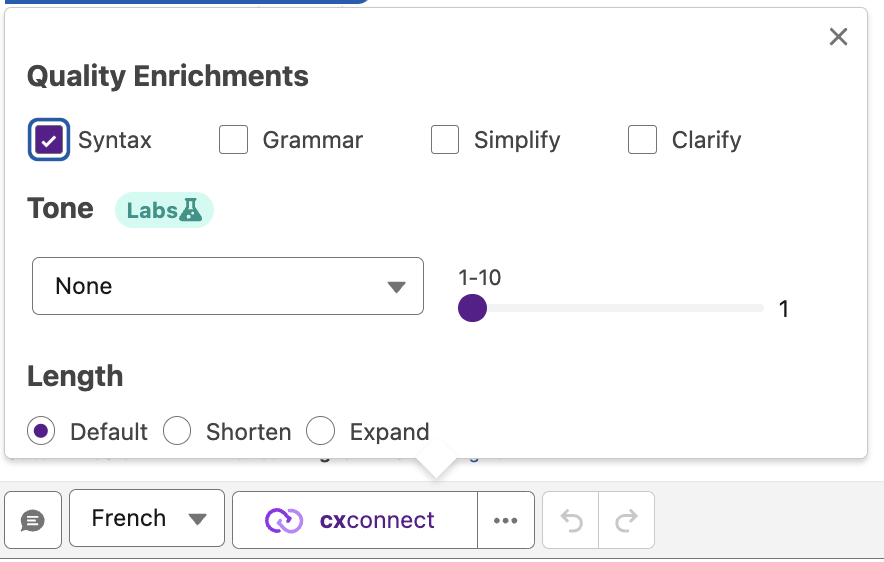
* The Messaging application comes with optional AI Enrichment options that allow organizations and agents to enhance communication with customers.
* The available field on the MessagingTranslationHistory\_\_c object are as follows:
* **Content\_\_c**: The text content of the original message that is being translated.
* **IsLanguageSupported\_\_c**: A boolean field indicating whether the source or target language is supported for translation by the system.
* **IsTranslationEnabled\_\_c**: A boolean field indicating whether translation is enabled for the specific messaging session or user.
* **Messaging\_Session\_Translation\_\_c**: A reference to the MessagingSession object, linking the translation history to the session in which the message was sent.
* **Messaging\_User\_Translation\_\_c**: A reference to the MessagingEndUser object, linking the translation history to the end user who sent or received the message.
* **Name\_\_c**: The recorded name of the user or agent who sent the message.
* **SourceLanguageCode\_\_c**: The ISO language code (e.g., "en" for English, "fr" for French) representing the language of the original content.
* **SourceLanguage\_\_c**: The full name of the language of the original content (e.g., "English", "French").
* **TargetLanguageCode\_\_c**: The ISO language code representing the target language for the translation.
* **TargetLanguage\_\_c**: The full name of the target language for the translation.
* **TimestampLong\_\_c**: A numeric representation of the timestamp (milliseconds since epoch) indicating when the message was translated.
* **Timestamp\_\_c**: A date/time field representing when the message was translated, formatted for human readability.
* **Translated\_\_c**: The text content of the translated message.
* **TranslationKey\_\_c**: A unique identifier or key used to track the translation request.
* **Type\_\_c**: The type of user the translation event is tied to, such as whether it was an Agent or Visitor.
## AI Enrichments
* The Messaging application comes with optional AI Enrichment options that allow organizations and agents to enhance communication with customers.
 ### Additional Features
 * Undo and Redo buttons will activate after AI Enrichments have generated new text. This allows agents to go back, then forward, to the original text typed.
## Currently Unsupported Features
While cxconnect.ai strives for feature completeness with the native Salesforce conversation component, there are some features that are currently not available.
* Message attachments (images, files, etc)
* Insert Emoji - cxconnect.ai supports emoji's but does not currently replicate the "Insert Emoji" option found in some organizations.
* Agent Transfer
* Messaging Components - The insertion of and translation for existing components within the conversation.
* Agent Flagging
* Undo and Redo buttons will activate after AI Enrichments have generated new text. This allows agents to go back, then forward, to the original text typed.
## Currently Unsupported Features
While cxconnect.ai strives for feature completeness with the native Salesforce conversation component, there are some features that are currently not available.
* Message attachments (images, files, etc)
* Insert Emoji - cxconnect.ai supports emoji's but does not currently replicate the "Insert Emoji" option found in some organizations.
* Agent Transfer
* Messaging Components - The insertion of and translation for existing components within the conversation.
* Agent Flagging