> ## Documentation Index
> Fetch the complete documentation index at: https://docs.cxconnect.ai/llms.txt
> Use this file to discover all available pages before exploring further.
# Troubleshooting
> Troubleshooting the cxconnect.ai app for Salesforce
## Common Issues and Solutions
### Issue: Unable to Install Application
You may see an error message during the installation process that prevents the package from installing successfully.
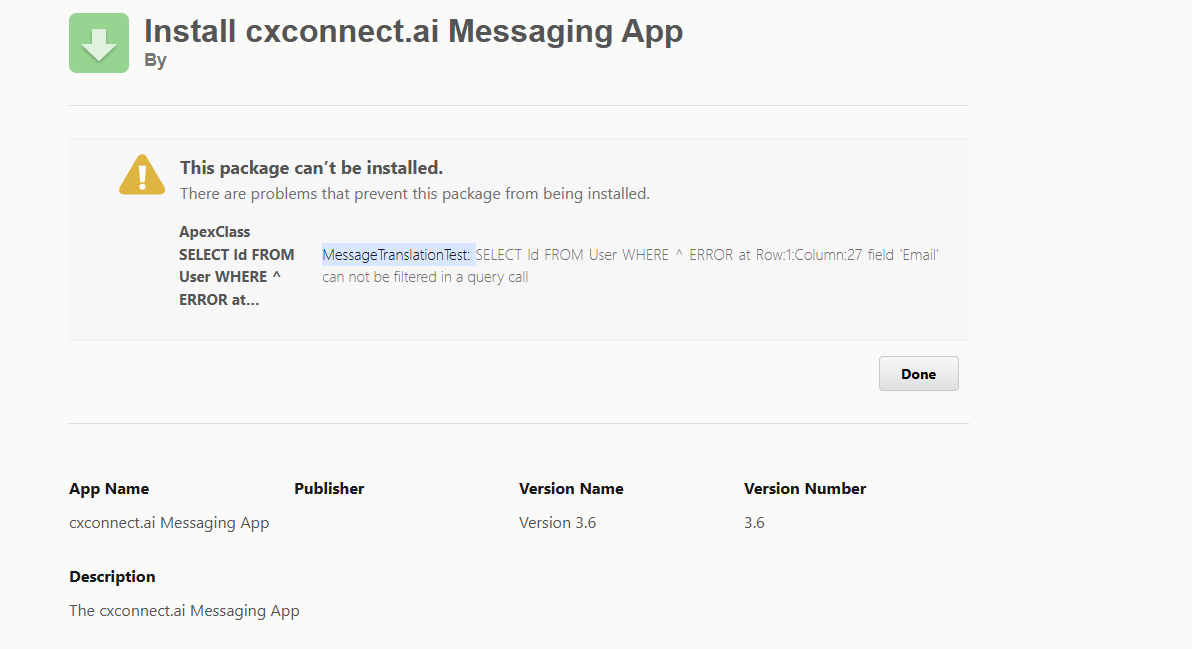 *Figure 2: Package installation failure due to field encryption.*
**Solution:**
* This error typically occurs if your environment has `Shield Platform Encryption` enabled on standard fields that the package is trying to access. Disabling this feature for the conflicting fields during installation will resolve the issue.
### Issue: Unable to Manage Translation Rules
When trying to view or edit translation rules, the component may fail to load or show an error.
*Figure 2: Package installation failure due to field encryption.*
**Solution:**
* This error typically occurs if your environment has `Shield Platform Encryption` enabled on standard fields that the package is trying to access. Disabling this feature for the conflicting fields during installation will resolve the issue.
### Issue: Unable to Manage Translation Rules
When trying to view or edit translation rules, the component may fail to load or show an error.
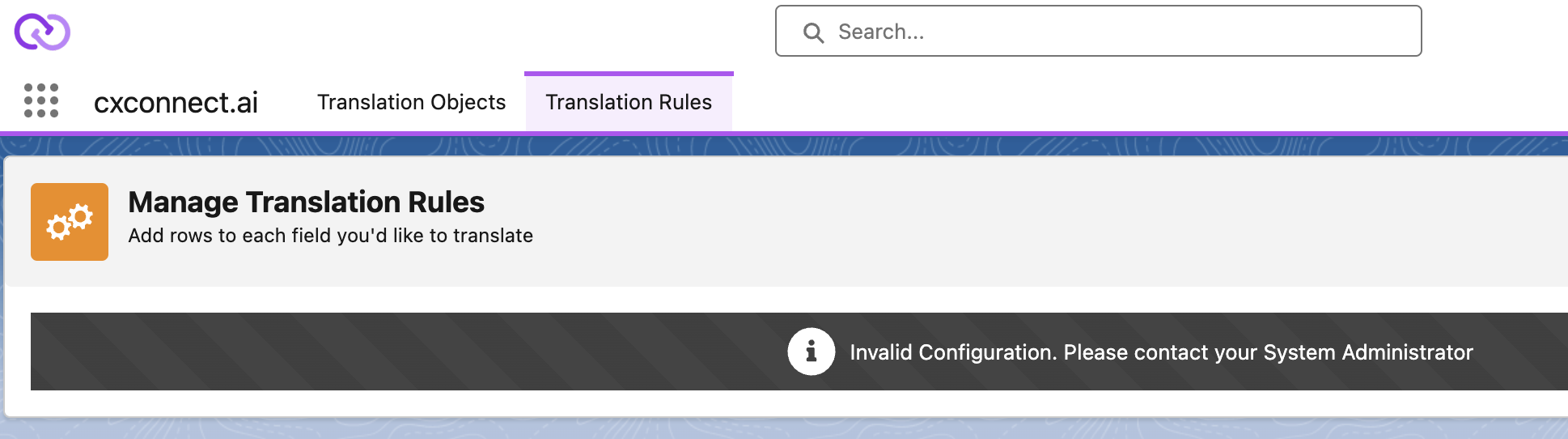 *Figure 3: Error message in the Translation Rules component.*
**Solutions:**
* Verify that your [Custom Metadata Types](#step-3-configure-translation-setting-authentication-key-and-api-endpoint) are configured correctly.
* Ensure your [Remote Site Settings](#step-4-setup-remote-site-settings) are set correctly to allow the required cxconnect.ai endpoints.
### Issue: Large Unexpected Translation Volume
The volume of translations is much higher than expected.
**Solutions:**
* Assure your Translation Rules are set up and [configured correctly](installation/base#step-7-configure-translation-rules), we recommend having a minimal subset (1 or 2) of Target Languages selected by default.
### Issue: Language Dropdown is Empty After a Sandbox Refresh
After refreshing a sandbox, the language selection dropdown may appear empty.
**Solutions:**
* This is often caused by incorrect configuration data. First, check that your [Custom Metadata Types](#step-3-configure-translation-setting-authentication-key-and-api-endpoint) are set up correctly.
* Next, ensure your [Remote Site Settings](#step-4-setup-remote-site-settings) are still correct and active.
### Issue: Messaging Component Does Not Display Translated Conversation
The translation component for the Messaging channel will only have access to conversations *after* the native Salesforce conversation component has been loaded.
**Solutions:**
* **Option 1:** Configure the agent's workspace so the native **Conversation** tab is the default tab to open, not the cxconnect.ai tab.
* **Option 2:** Add the native **Conversation** component to the same page layout as the cxconnect.ai component. This ensures it loads in the background.
### Issue: Error Occurs When "Translate Email" Button is Pressed
Pressing the "Translate Email" button results in an error message.
*Figure 3: Error message in the Translation Rules component.*
**Solutions:**
* Verify that your [Custom Metadata Types](#step-3-configure-translation-setting-authentication-key-and-api-endpoint) are configured correctly.
* Ensure your [Remote Site Settings](#step-4-setup-remote-site-settings) are set correctly to allow the required cxconnect.ai endpoints.
### Issue: Large Unexpected Translation Volume
The volume of translations is much higher than expected.
**Solutions:**
* Assure your Translation Rules are set up and [configured correctly](installation/base#step-7-configure-translation-rules), we recommend having a minimal subset (1 or 2) of Target Languages selected by default.
### Issue: Language Dropdown is Empty After a Sandbox Refresh
After refreshing a sandbox, the language selection dropdown may appear empty.
**Solutions:**
* This is often caused by incorrect configuration data. First, check that your [Custom Metadata Types](#step-3-configure-translation-setting-authentication-key-and-api-endpoint) are set up correctly.
* Next, ensure your [Remote Site Settings](#step-4-setup-remote-site-settings) are still correct and active.
### Issue: Messaging Component Does Not Display Translated Conversation
The translation component for the Messaging channel will only have access to conversations *after* the native Salesforce conversation component has been loaded.
**Solutions:**
* **Option 1:** Configure the agent's workspace so the native **Conversation** tab is the default tab to open, not the cxconnect.ai tab.
* **Option 2:** Add the native **Conversation** component to the same page layout as the cxconnect.ai component. This ensures it loads in the background.
### Issue: Error Occurs When "Translate Email" Button is Pressed
Pressing the "Translate Email" button results in an error message.
 *Figure 4: Error when translating an email without a draft.*
**Solution:**
* The *Email Translator* component relies on two things:
1. Draft emails must be enabled in your org, and
2. A draft must exist for the current email.
* Salesforce does not create a draft when email content is generated by a **macro**. To resolve this, simply make a small modification to the email body (e.g., add and remove a space). This will trigger Salesforce to save a draft, and the translation button will then work.
*Figure 4: Error when translating an email without a draft.*
**Solution:**
* The *Email Translator* component relies on two things:
1. Draft emails must be enabled in your org, and
2. A draft must exist for the current email.
* Salesforce does not create a draft when email content is generated by a **macro**. To resolve this, simply make a small modification to the email body (e.g., add and remove a space). This will trigger Salesforce to save a draft, and the translation button will then work.
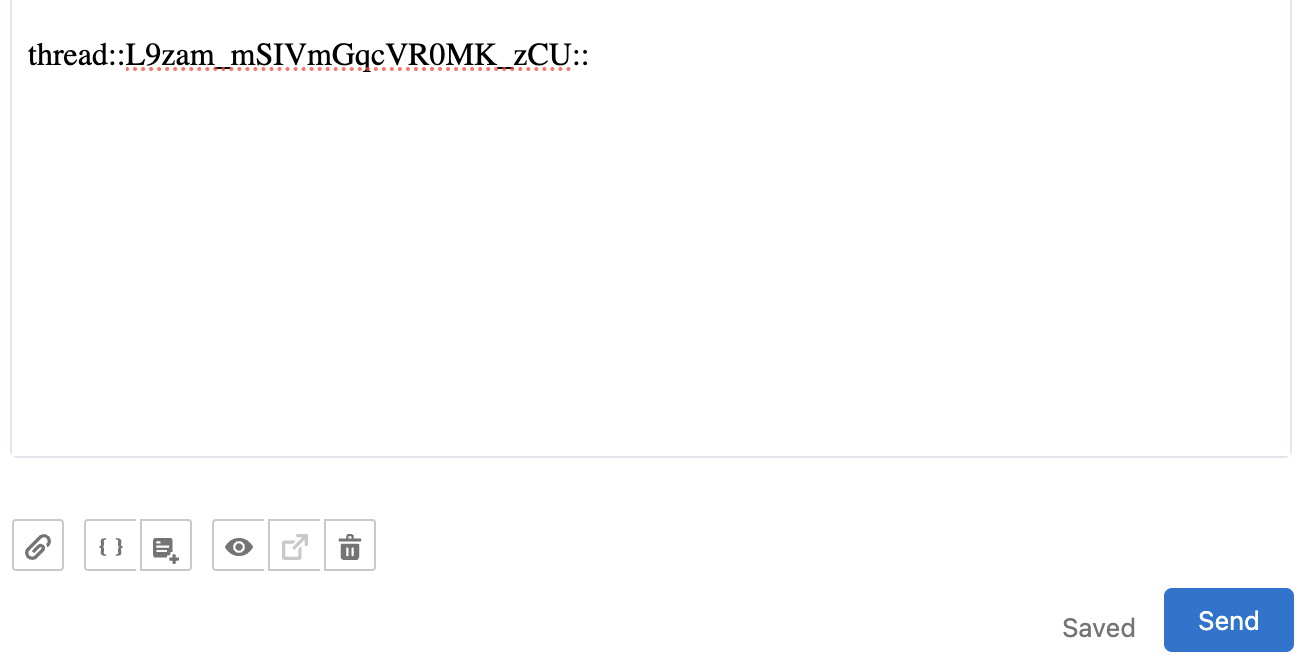 *Figure 5: The email composer showing the "Saved" draft status.*
### Issue: Translated Emails Contain Question Marks (`????`)
Emails translated and sent from Salesforce appear with `????` characters in the recipient's email client.
**Solutions:**
* **Check Agent Email Settings:** The agent's user email encoding may not be set to `UTF-8`. See this [Salesforce article for the resolution](https://help.salesforce.com/s/articleView?id=release-notes.rn_sales_productivity_email_UTF8.htm\&language=en_US\&type=5\&release=228).
* **Check Email Template Encoding:** The email template itself may not be set to `UTF-8`. You can update this using the Developer Console.
```apex theme={null}
// Find the specific template and update its encoding
EmailTemplate templateToFix = [SELECT Id, Encoding FROM EmailTemplate WHERE Id = 'YOUR_TEMPLATE_ID'];
if (templateToFix != null) {
templateToFix.Encoding = 'UTF-8';
update templateToFix;
}
```
### Issue: URLs from Customers are Not Visible in the Messaging App
An agent cannot see a URL that a customer sent via a messaging channel.
**Solution:**
* This is a known Salesforce behavior. Salesforce automatically converts messages containing URLs into [Enhanced Links](https://help.salesforce.com/s/articleView?id=service.messaging_components_enhanced_link.htm\&type=5). The cxconnect.ai *Messaging App* does not currently support this proprietary format.
## Updating Custom Metadata Layouts After an Upgrade
Salesforce managed packages cannot automatically update page layouts after they are installed. This means when cxconnect.ai adds new fields in an upgrade, they will not appear on your existing layouts automatically. You must add them manually.
The following steps show how to update the **Translation Setting** layout.
1. From Setup, navigate to **Custom Metadata Types** and select **Translation Setting**.
2. In the "Page Layouts" section, click **Edit** next to the layout you wish to modify.
*Figure 5: The email composer showing the "Saved" draft status.*
### Issue: Translated Emails Contain Question Marks (`????`)
Emails translated and sent from Salesforce appear with `????` characters in the recipient's email client.
**Solutions:**
* **Check Agent Email Settings:** The agent's user email encoding may not be set to `UTF-8`. See this [Salesforce article for the resolution](https://help.salesforce.com/s/articleView?id=release-notes.rn_sales_productivity_email_UTF8.htm\&language=en_US\&type=5\&release=228).
* **Check Email Template Encoding:** The email template itself may not be set to `UTF-8`. You can update this using the Developer Console.
```apex theme={null}
// Find the specific template and update its encoding
EmailTemplate templateToFix = [SELECT Id, Encoding FROM EmailTemplate WHERE Id = 'YOUR_TEMPLATE_ID'];
if (templateToFix != null) {
templateToFix.Encoding = 'UTF-8';
update templateToFix;
}
```
### Issue: URLs from Customers are Not Visible in the Messaging App
An agent cannot see a URL that a customer sent via a messaging channel.
**Solution:**
* This is a known Salesforce behavior. Salesforce automatically converts messages containing URLs into [Enhanced Links](https://help.salesforce.com/s/articleView?id=service.messaging_components_enhanced_link.htm\&type=5). The cxconnect.ai *Messaging App* does not currently support this proprietary format.
## Updating Custom Metadata Layouts After an Upgrade
Salesforce managed packages cannot automatically update page layouts after they are installed. This means when cxconnect.ai adds new fields in an upgrade, they will not appear on your existing layouts automatically. You must add them manually.
The following steps show how to update the **Translation Setting** layout.
1. From Setup, navigate to **Custom Metadata Types** and select **Translation Setting**.
2. In the "Page Layouts" section, click **Edit** next to the layout you wish to modify.
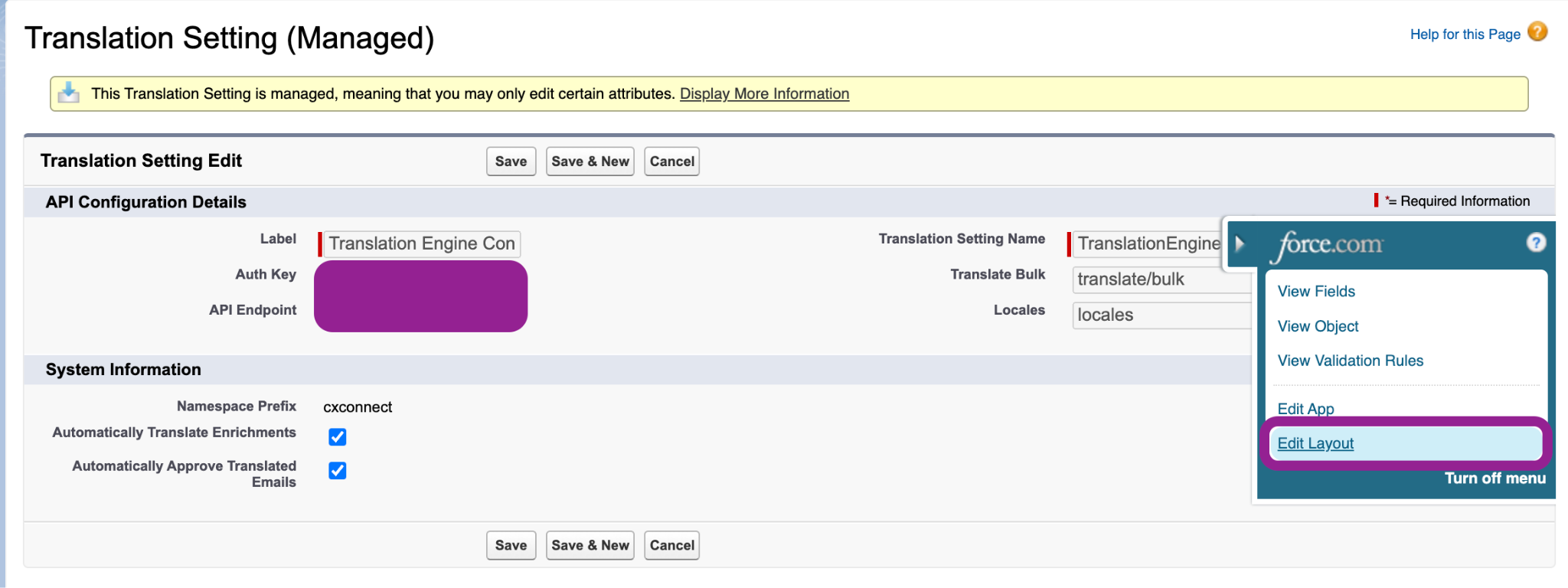 *Figure 6: Selecting "Edit Layout" for the custom metadata type.*
3. In the layout editor, you can drag any new fields from the top panel down into the page layout. Place them in a relevant section like *API Configuration Details* or *System Information*.
*Figure 6: Selecting "Edit Layout" for the custom metadata type.*
3. In the layout editor, you can drag any new fields from the top panel down into the page layout. Place them in a relevant section like *API Configuration Details* or *System Information*.
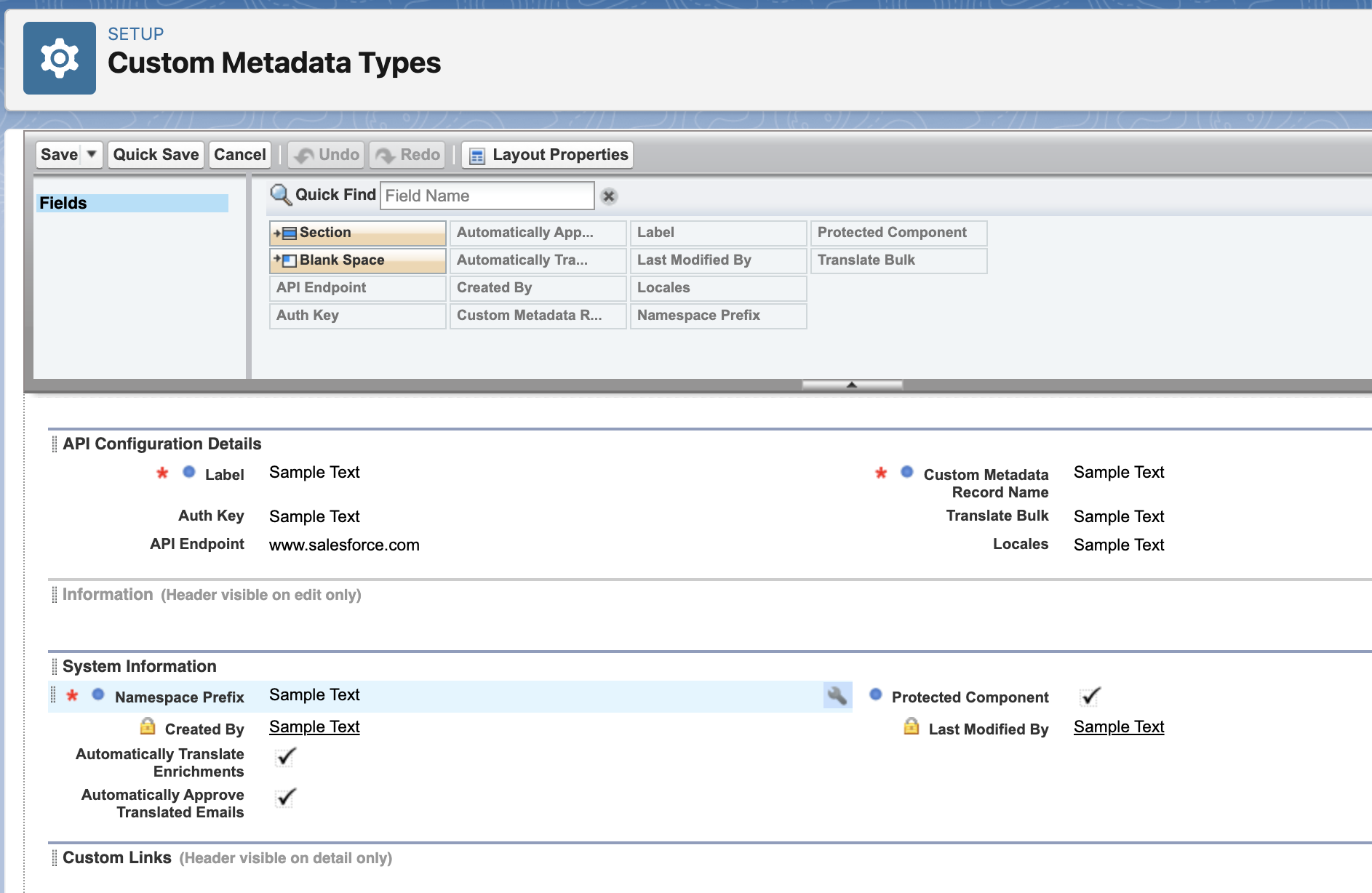 *Figure 7: Dragging new fields onto the page layout.*
4. Click **Save**. The new fields will now be visible and editable on the record page.
## Error Codes
cxconnect.ai provides specific error codes to help you quickly diagnose and resolve problems.
*Figure 7: Dragging new fields onto the page layout.*
4. Click **Save**. The new fields will now be visible and editable on the record page.
## Error Codes
cxconnect.ai provides specific error codes to help you quickly diagnose and resolve problems.
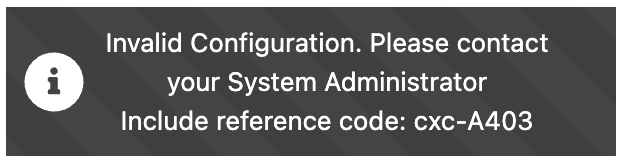 *Figure 8: An example error message displaying the code cxc-A403.*
* **cxc-A403**: The API key is invalid or has expired. The application cannot communicate with the cxconnect.ai backend services. Generate a new Personal Access Token (PAT) and update it in your **Translation Setting** custom metadata record.
*Figure 8: An example error message displaying the code cxc-A403.*
* **cxc-A403**: The API key is invalid or has expired. The application cannot communicate with the cxconnect.ai backend services. Generate a new Personal Access Token (PAT) and update it in your **Translation Setting** custom metadata record.